
Overview
The Logging page allows administrators to configure remote log forwarding to a centralized syslog server and control logging for individual system services. Centralized logging improves log retention, security monitoring, compliance auditing, and troubleshooting across the network.
Remote logging supports secure log transmission using TLS encryption. When TLS encryption is enabled for a TCP-based remote syslog server, administrators must upload a trusted CA certificate to authenticate the remote server and establish a secure connection.
Accessing the Logging Page
-
Click the System option from the side bar.
-
Click the Logging tab.
-
The Logging page consists of two sections:
-
Remote Log Server – Configure the remote syslog server and transport settings.
-
Log Service – Configure local and remote logging for individual services.
-
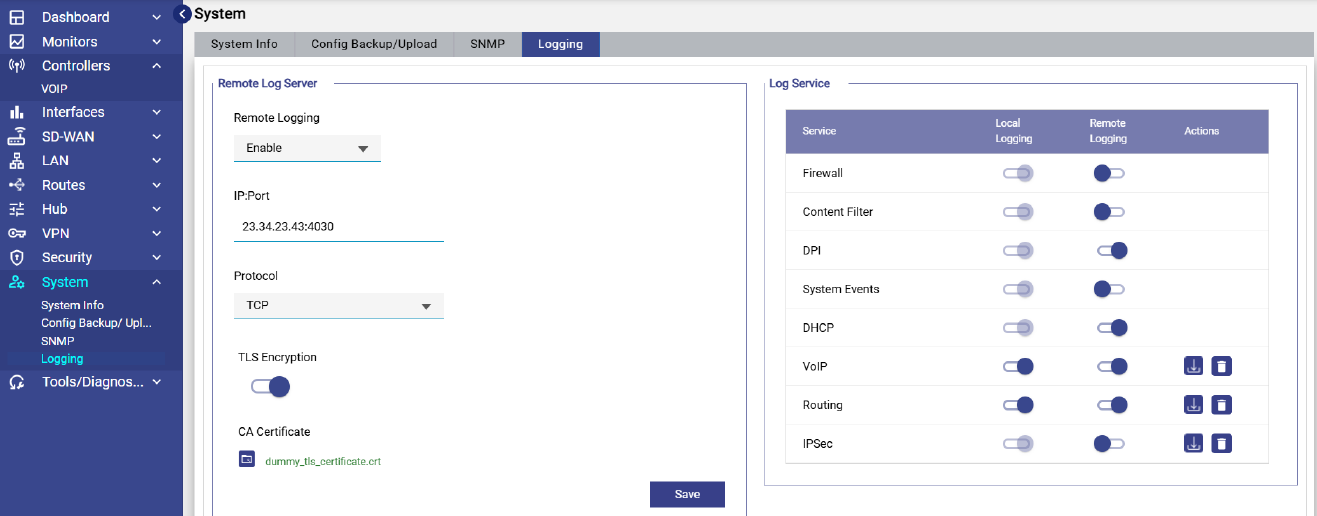
Remote Log Server
-
The Remote Logging field enables or disables forwarding of system logs to a remote syslog. server.
-
Select Enable from the dropdown to forwards logs to the configured remote server.
-
Select Disable from the dropdown to stop forwarding logs to the remote server.
-
-
The IP:Port field specifies the IP address or hostname and port number of the remote syslog server. Example:
23.34.23.43:4030 -
In the Protocol field, select the transport protocol used for log transmission. The available options are:
-
TCP - Provides reliable log delivery with connection-based communication.
-
UDP - Provides lightweight log transmission with minimal overhead.
-
-
TLS Encryption enables secure, encrypted communication between the device and the remote syslog server.
-
When TLS Encryption is enabled and TCP is selected as the protocol, a CA Certificate upload field becomes available. A CA certificate is required to validate the identity of the remote syslog server before a secure connection can be established.
-
-
The CA Certificate field appears only when the Protocol is set to TCP and TLS Encryption is enabled. Administrators can upload a trusted CA certificate used to verify the remote syslog server.
-
After a successful upload:
-
The uploaded filename is displayed in green.
-
-
If no certificate has been uploaded:
-
The message "No certificate uploaded" is displayed in red.
-
-
Attempting to save the configuration with TLS enabled but without a certificate displays the validation error:
"CA Certificate is required when TLS Encryption is enabled." -
If a certificate already exists on the device, its filename is pre-populated and the user is not required to upload it again unless they wish to replace it.
-
-
Click Save. The system applies the updated remote logging configuration.
Log Service
The Log Service table allows administrators to control logging behavior for specific services. Available services may include:
-
Firewall
-
Content Filter
-
DPI
-
System Events
-
DHCP
-
VoIP
-
Routing
-
IPSec
Local Logging
Enable the Local Logging toggle to store service logs locally on the device.
Remote Logging
Remote Logging forwards the service logs to the configured remote syslog server. Enable the Remote Logging toggle corresponding to each service to forward its logs remotely.
Actions
Depending on the service, additional actions may be available, such as:
-
Downloading log files
-
Removing log files
-
Managing service-specific log settings
Important Notes:
-
TLS-encrypted logging requires a valid CA certificate.
-
The CA Certificate option is displayed only when TCP transport and TLS encryption are both enabled.
-
Existing uploaded certificates are automatically displayed when present.
-
Service-level remote logging can be enabled independently for each supported service.