
The user can monitor the Alerts, view alert details, take the necessary action and also delete the alerts using the Alerts pop-up window.
Monitoring Alerts
System alerts are raised in various scenarios. Some examples are:
-
Active Internet Source becomes unavailable.
-
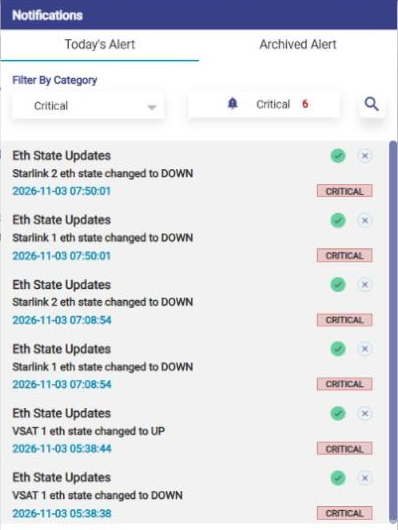
A WAN interface changes state, for example Eth State Updates – Starlink 1 eth state changed to DOWN.
-
Network/Device consumption exceeds thresholds.
-
Traffic is paused on a Network/Device/Enterprise User.
-
Any configuration is updated through the Configuration Wizard.
-
A VPN connection is established or disconnected. These VPN connection events are also pushed to Kloud for monitoring and alerting.
Following are the severity levels of the system alerts.
-
Critical
-
Major
-
Minor
-
Info
-
Warning
Viewing Alerts
To view the alerts, perform the following steps.
Steps
-
Log on to the EpicOS System. The home page appears.
-
Click the Alerts icon.
-
The Notifications pop-up window appears.
-
The count of alerts is displayed over the bell icon, see figure below.
-
Click Today’s Alert tab. The current day alerts will be shown under the Today’s Alert tab.
-
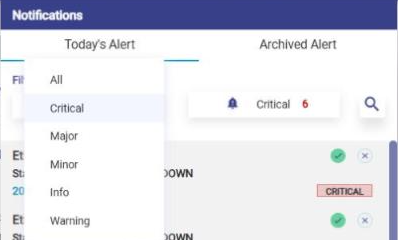
The user can filter the alerts based on the severity levels. To do this, click the drop-down arrow under the Filter By Category section and select All, Critical, Major, Minor, Info or Warning. By default, Critical is selected. A Search icon is available next to the alert count. See Figure Filter By Category Drop-Down. Details of the alerts are displayed. In addition to this, the count of the alerts based on the severity level is displayed.
-
Each alert shows its title (for example, Eth State Updates), a description of the event, the date and time, and a severity badge (for example, CRITICAL). Each alert also has a Mark as fixed (green tick) icon and a Delete (x) icon.
-
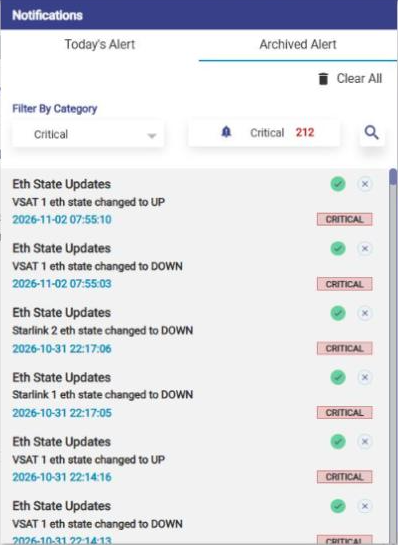
Click Archived Alert tab to view the alerts up to previous 30 days. The Filter By Category, count, Mark as fixed and Delete options work the same way as in the Today’s Alert tab, and a Clear All option is also available.
Clearing an Alert
To clear an alert, perform the following steps.
Steps
-
In The Notifications pop-up window, click on Today’s Alert or Archived Alert tab.
-
Click on the Green tick (Mark as fixed) icon next to the alert that the user wants to clear or mark as fixed. This will still maintain the alert in the system.
Deleting an Alert
To delete an alert, perform the following steps.
Steps
-
In The Notifications pop-up window, click on Today’s Alert or Archived Alert tab.
-
Click on the x (Delete) icon next to the alert. This will delete the alert from the system.
Clearing all Alerts
To clear archived alerts, perform the following steps.
Steps
-
In The Notifications pop-up window, click on Archived Alert tab.
-
Click on Clear All button. This will clear all previous day’s alerts.