
To configure the DNS proxy, perform the following steps.
Steps
· Select DNS Proxy tab under the LAN screen.
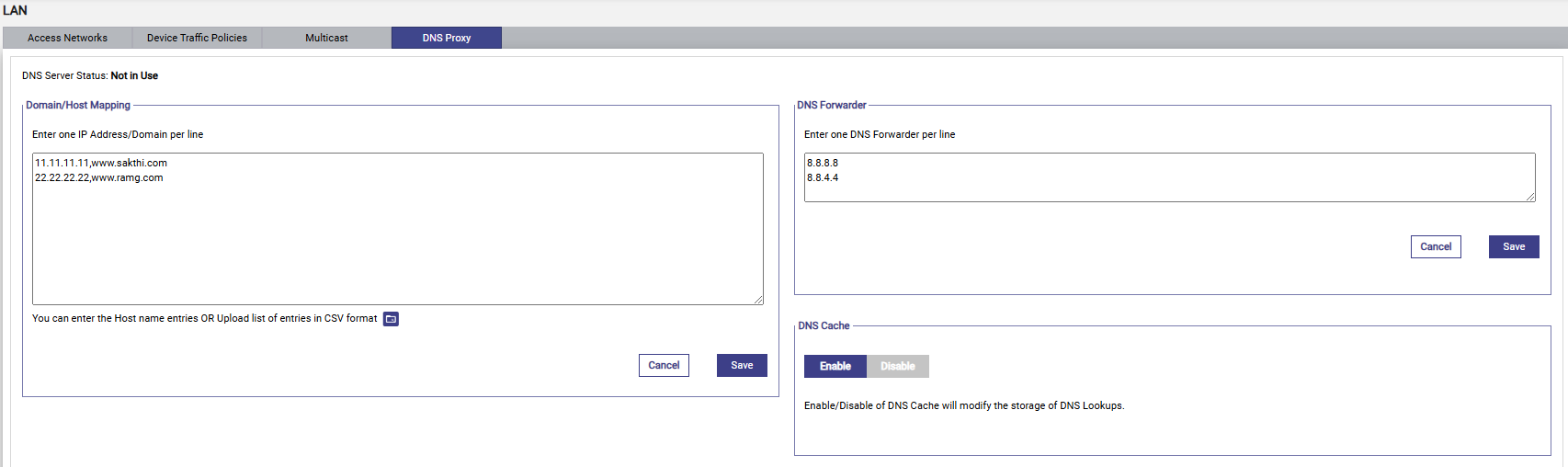
· The Domain/Host Mapping, DNS Forwarder, and DNS Cache sections become available, see figure below.
· To enter data in the respective fields, see table below.
|
Fields |
Description |
Configuration |
|
DNS Server Status |
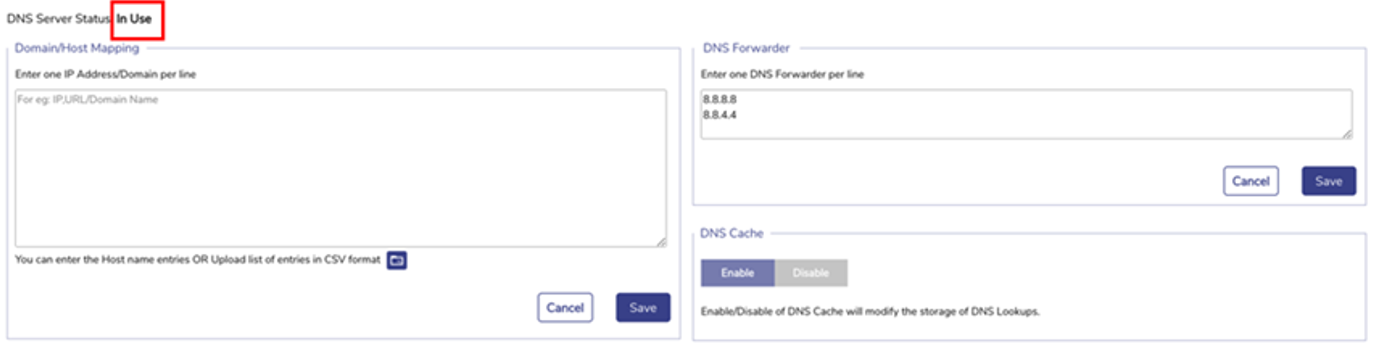
If any Access Network is using the DNS proxy, then the status In Use is displayed. |
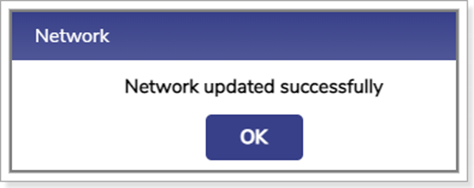
To configure the DNS proxy, perform the following steps. Steps · Click Access Networks. The Access Networks page appears, see Figure Access Networks · Click Pencil icon corresponding to the network under the Action section on the Access Networks page. The Updated Connected Network page appears, see Figure Update Connected Network. · Enter the DHCP Gateway IP address in the DNS Server IP field under the DHCP Settings section. · Click Save. The network is updated, and a successful message is displayed, see Figure Network Updated Successfully. · Click OK. · The status In Use is displayed, see Figure DNS Server In Use. · By default, the status Not In Use is displayed. |
|
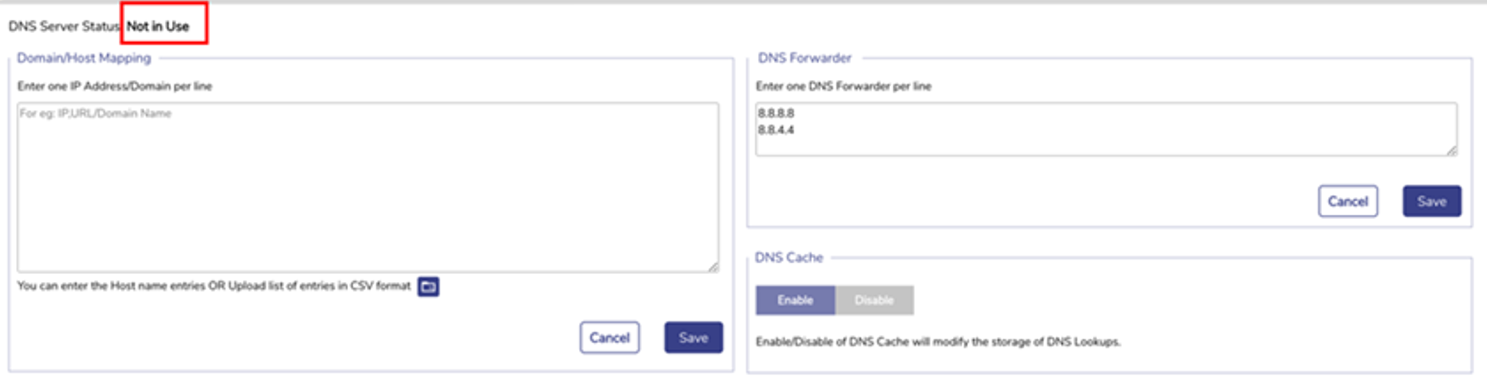
If the Access Network is not using the DNS proxy, then the status Not in Use is displayed. |
To remove the DNS proxy, perform the following steps. Steps · Click Access Networks. The Access Networks page appears, see Figure Access Networks. · Click corresponding to the network under the Action section on the Access Networks page. The Updated Connected Network page appears, see Figure Update Connected Network. · Delete the DHCP Gateway IP address in the DNS Server IP field under the DHCP Settings section. · Or, · Enter 8.8.8.8 in the DNS Server IP field under the DHCP Settings section. · Click Save. The network is updated, and a successful message is displayed, see Figure Network Updated Successfully. · Click OK. The status Not In Use is displayed, see Figure DNS Server Not In Use. |
|
|
Domain/Host Mapping |
|
Enter an IP address and suffix domain on a single line. Click Save. Or, To configure multiple domains and host mapping, enter the IP address and suffix domain on a distinct line, and perform this step on every line. Or, The user can upload the list of the domain/host mapping also in the Comma Separated Value (CSV) format. For this, click Upload Configuration icon and upload the CSV file. Click Save. |
|
DNS Forwarder |
|
Enter only one DNS forwarder on every line. Click Save. |
|
DNS Cache |
|
To enhance the DNS lookups, click Enable. |
Table DNS Proxy Settings
The DNS proxy is configured.