
-
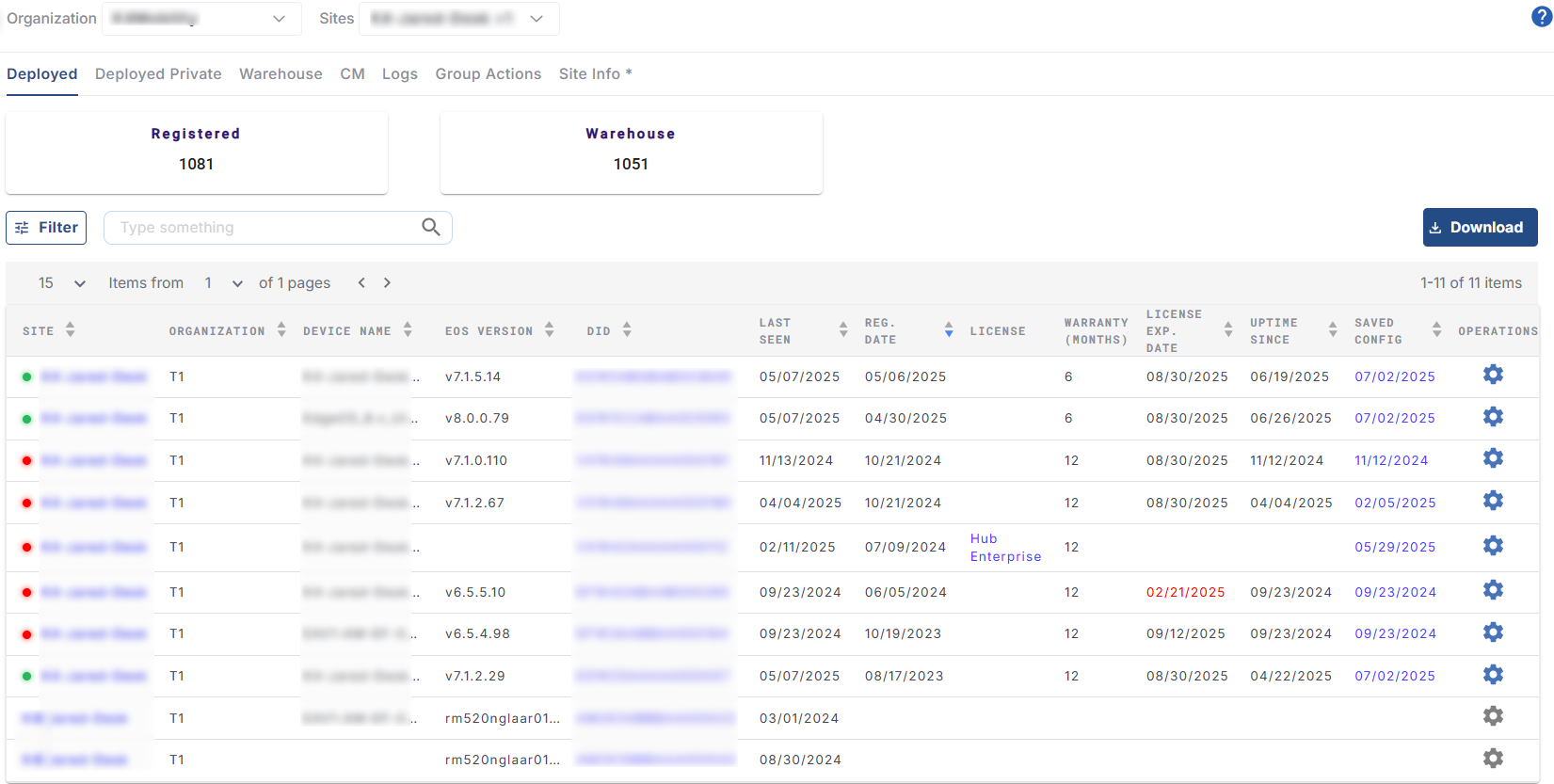
The Deployed tab is selected by default. It shows headers with the following information:
-
Registered – Number of devices registered across all the sites in the selected organization or sub-organization.
-
Warehouse – Number of devices yet to be registered and deployed across all the sites in the selected organization or sub-organization.
-

-
Below the headers, the table shows the current list of devices that are deployed in the selected organization or sub-organization.
-
The table displays the below information:
-
Site – Name of the Site in which device is deployed
-
Organization – Name of the Organization to which the site belongs to
-
Device Name – Name of the device
-
EOS Version – The software version of EpicOS when the last backup was taken
-
DID – Device Identification Number
-
Last Seen – The date on which the device was last online
-
Reg. Date – The date on which the device got registered for the site. This is the date from which the first plan is active for the device
-
License Type - Type of License
-
Warranty - The warranty duration of the device
-
License Exp. Date – The expiry date of the license for the device. This can be monthly or yearly. The connection has to be renewed for the device before this date passes
-
Uptime Since – The date on which the device was last turned on
-
Saved Config – The Software configuration running on the device
-
-
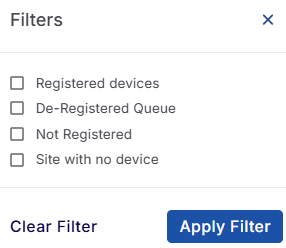
The Filter button helps the user to filter the table based on the following categories:
-
Registered Devices
-
De-Registered Queue
-
Not Registered
-
Site with no device
-
-
Select the required filter options and click Apply Filters button. The table gets filtered accordingly and shows the results.
Operations
-
Click the
-
There are two types of configurations depending on the type of the selected device. The two types of configurations are:
-
EpicOS Configuration
-
OpenEdge Configuration
-
-
The EpicOS Configurations dialog box contains the following options in its left menu bar - Traffic Policy, Firewall, WAN Profile, Hub IP, Quota, System and Association. These options can be used to create, copy and modify various configurations for the selected device.
-
Please refer the following page to perform the EpicOS Configurations - EpicOS Configuration
-
The OpenEdge Configurations dialog box contains the following options in its left menu bar - Interfaces, WAN, LAN, Wi-Fi, System and Association. These options can be used to manage network settings, WAN/LAN/Wi-Fi interfaces, system updates, and device transfers for the selected device.
-
Please refer the following page to perform the OpenEdge Configurations - OpenEdge Configuration
-
When there are many devices to be listed in the Deployed table, the pagination helps the user navigate to each page by using the < > buttons.
-
Click the dropdown menu given at the left of the pagination buttons to choose the number of devices to be seen in a single page. The user can choose between 10/15/25/50/100 from the dropdown menu.
-
Click Download icon to download the entire deployed device list in CSV format.
Delete a Site
Keywords: Delete Site, Hide Site, How to delete a site
Deleting a site can be done from the Deployed tab of the Inventory screen. Follow the below steps to delete a site.
-
Select Inventory option from the left menu bar of EpicLink homepage.
-
The Deployed tab is selected by default.
-20250731-114228.png?cb=3a3228fa2f66a6a7a429e01e10f32da4)
-
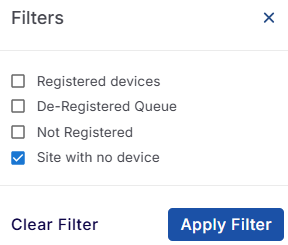
Select the Filter button and select the Site with no device option.
-
Click the Apply Filter button. The table will update to display only the sites with no registered devices.
-
Click the
-
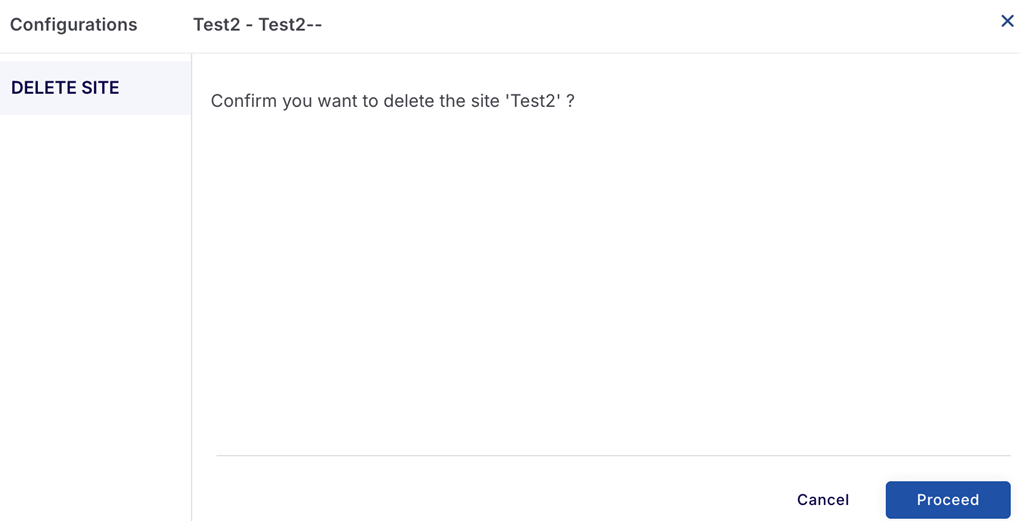
Click the Proceed button to delete the site.
-
Click the Cancel button to cancel the operation.