
-
Click the Group Actions tab. This tab enables the user to group their devices and perform operations on them easily.
-20250703-124628.png?cb=bd98baf5f733eff87f0b65b030adf905)
-
Click the Create Group button to create a new group.
-20250703-124747.png?cb=dca1821549dd1ff73f81a7e920880b09)
-
Enter the Group Name.
-
Select the Organization from the dropdown menu.
-
Select the required Devices from the dropdown menu.
-
Click Create button to create the group.
-
The groups created for the selected organization will be listed under the Groups table.
-
The table shows the following information:
-
Name - Name of the Group
-
Organization - Name of the Organization
-
Created On - The date and time of group creation
-
Updated On - The date and time of group updating
-
Devices - The name of all devices part of the group
-
Actions
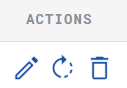
Edit Group
-
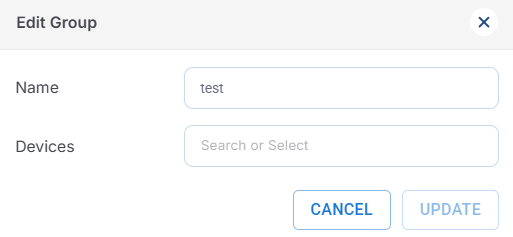
Click the Edit

-
Enter the Name of the group.
-
Edit the Devices by selecting from the dropdown menu.
-
Select Update button to save the changes.
EOS Upgrade
-
Click the EOS Upgrade

-
Click Proceed button to confirm updating the software version.
Delete
-
Click Delete icon to delete the selected group.