
Overview
The Tickets screen provides a summary of all the tickets raised organization-wide. Tickets screen can be accessed by selecting the Tickets option from the left menu bar of EpicLink.
-
In the Organization field, select the Organization or sub-organization from the dropdown menu. The logged in admin Organization is populated by default here. This is the organization corresponding to the email ID used to login.
-
The dropdown list consists of all the sub-organizations under logged in admin organization.
-
In the Sites field, select the required sites from the dropdown menu. The dropdown menu consists of all the sites associated with the selected Organization and sub-organizations.
-
Select the Period if necessary.
-20231229-154629.png?cb=809ab05067e93764713794f7a26bb19f)
-
The Tickets table shows the list of all the tickets of the selected Organization. It also shows the following information:
-
Ticket ID - Unique ID of the ticket
-
Site - Name of the Site
-
Subject - Subject given for the ticket
-
Created On - Date and time of creation
-
Creator - Name of the person that created the ticket
-
Assignee - Name of the Assignee
-
Priority - Priority level of the ticket
-
Updated On - Date and time of updating the ticket
-
Status - Status of the ticket
-
-
Click Download to download the table data in CSV format.
-
Click the Filters button to view the filtering options.
-
The user can select options such as:
-
Unassigned
-
Hot Sites
-
Raised less than 24h ago
-
Critical
-
Standup
-
My Tickets
-
RMA
-
-
User can filter the tickets based on their Status:
-
Open
-
Closed
-
Reopened
-
On Hold
-
Escalated
-
Resolved
-
-
User can select the name of the Assignee from the dropdown menu and filter the tickets assigned to them.
-
User can also select the name of the Creator from the dropdown menu and filter the tickets created by them.
-
Click Apply Filter to filter and view the required tickets.
-
Create a New Ticket
-
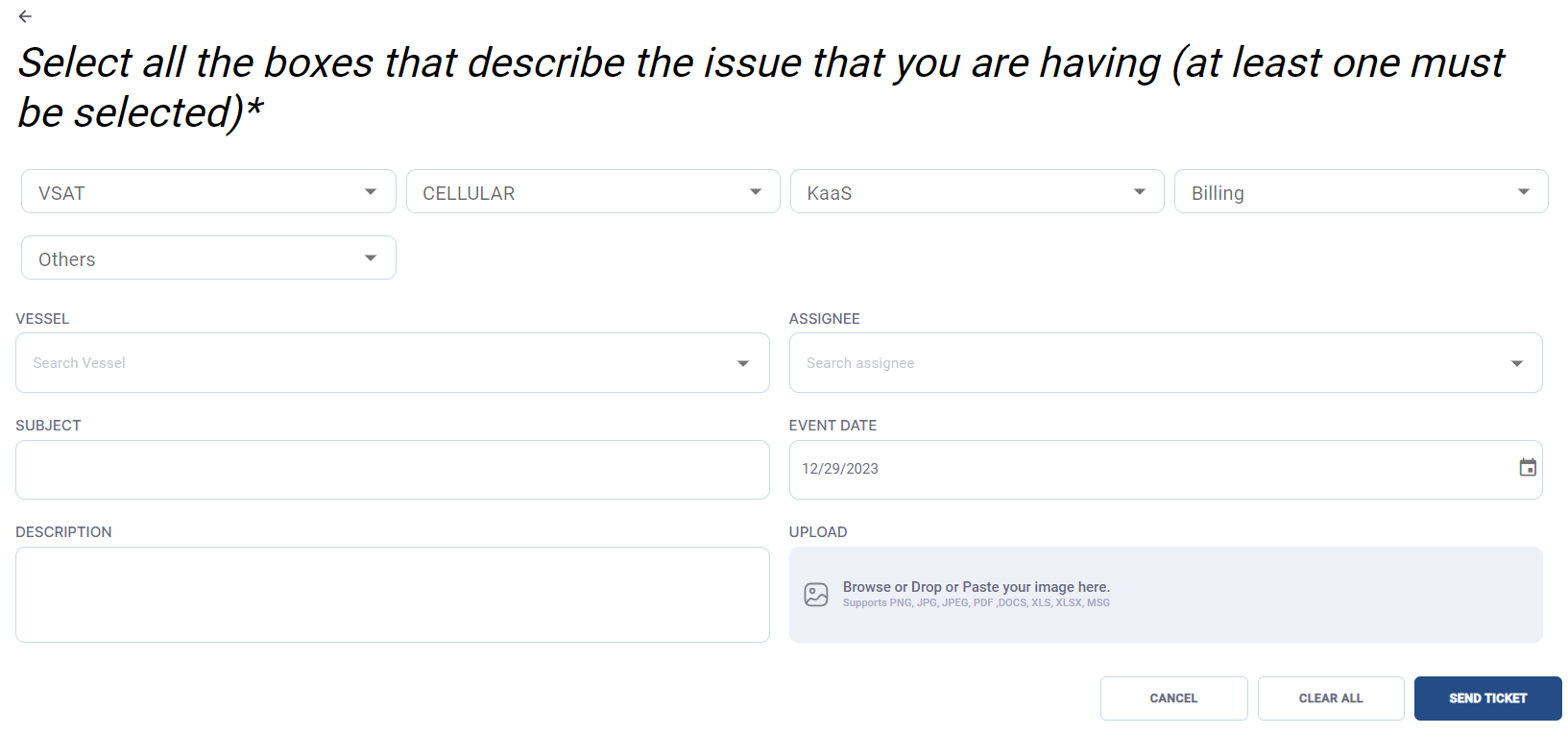
Click Create a New Ticket button to create a new ticket.
-
Click the VSAT field and select one of the following options:
-
Upgrade / Downgrade
-
Slow / No Service
-
Modem
-
Antenna
-
Others
-
-
Click the Cellular field and select one of the following options:
-
Upgrade / Downgrade
-
Slow / No Service
-
Modem
-
Antenna
-
Others
-
-
Click the KaaS field and select one of the following options:
-
Server SW
-
Mobile APP
-
Outbound Calls
-
Inbound Calls
-
Others
-
-
Click the Billing field and select one of the following options:
-
Invoicing
-
Payment
-
Others
-
-
Click the Others field and select one of the following options:
-
Network Issues
-
LAN
-
WI-FI
-
AV
-
Others
-
-
Select the name of the required Site from the Vessel field.
-
Select the name of the Assignee from the dropdown menu.
-
Enter the Subject.
-
Select the Event Date.
-
Enter the Description.
-
Select and upload any required images or screenshots.
-
Click Send Ticket to create the ticket.
-
Click Cancel button to cancel the operation.
-
Click Clear All button to clear all the entered fields.