
Overview
This guide walks through adding an ExpressVPN OpenVPN profile to a Konnect Open device and routing an access network through that VPN using an SD-WAN policy route. It also shows how to switch a policy route to a different VPN profile, and how multiple VPN profiles and policy routes can run at the same time.
The example throughout uses a profile named vpnexpress-canada (ExpressVPN Canada – Toronto) and the access network 192.168.70.0/24.
What this capability enables
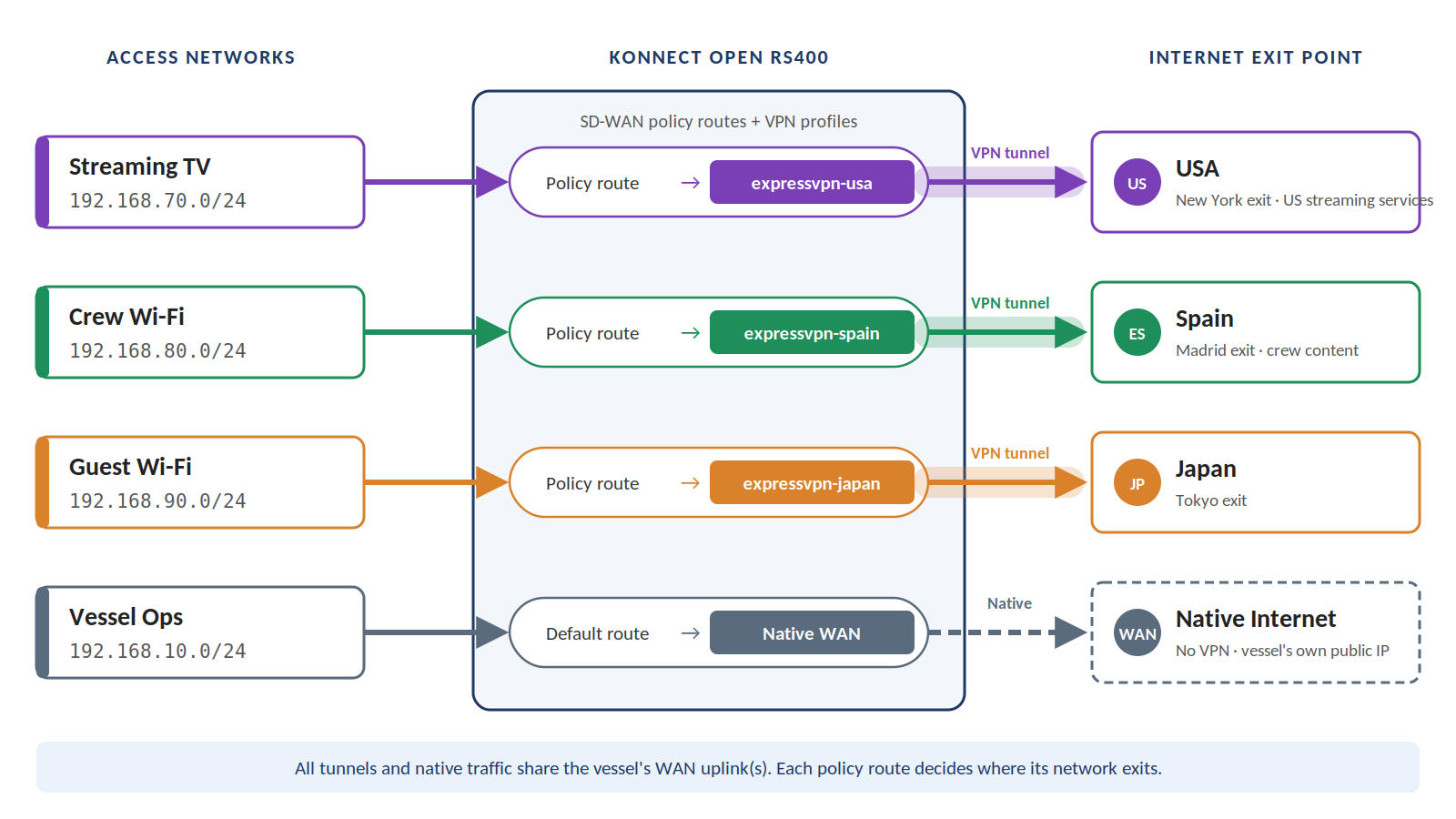
This turns a single Konnect Open into a multi-country VPN router, with per-network control over where each network exits to the Internet:
-
Multiple VPN profiles. Set up many VPN profiles on one device (for example, 10), across one or more VPN providers.
-
All connected at once. Keep every profile up and connected at the same time, and use policy routes to send any access network, or traffic to specific Internet IPs, over any of the VPNs.
Example: a streaming TV network exits through a USA VPN so US services work as expected, while the crew network goes out natively or through a VPN in Spain, Hong Kong, Japan, or wherever the crew prefers. ExpressVPN alone offers locations in over 100 countries.
Prerequisites
-
An active ExpressVPN account and subscription.
-
Konnect Open running release v2.0.0.492 or later.
-
Access to the device in http://cloud.kognitive.net .
-
The subnet of the access network you want to send over the VPN (visible under the LAN menu).
Part 1: Get your ExpressVPN credentials and .ovpn file
Do this from your workstation or laptop. You will need two things from the ExpressVPN portal: the OpenVPN username/password, and an .ovpn file for the location where the VPN should terminate.
-
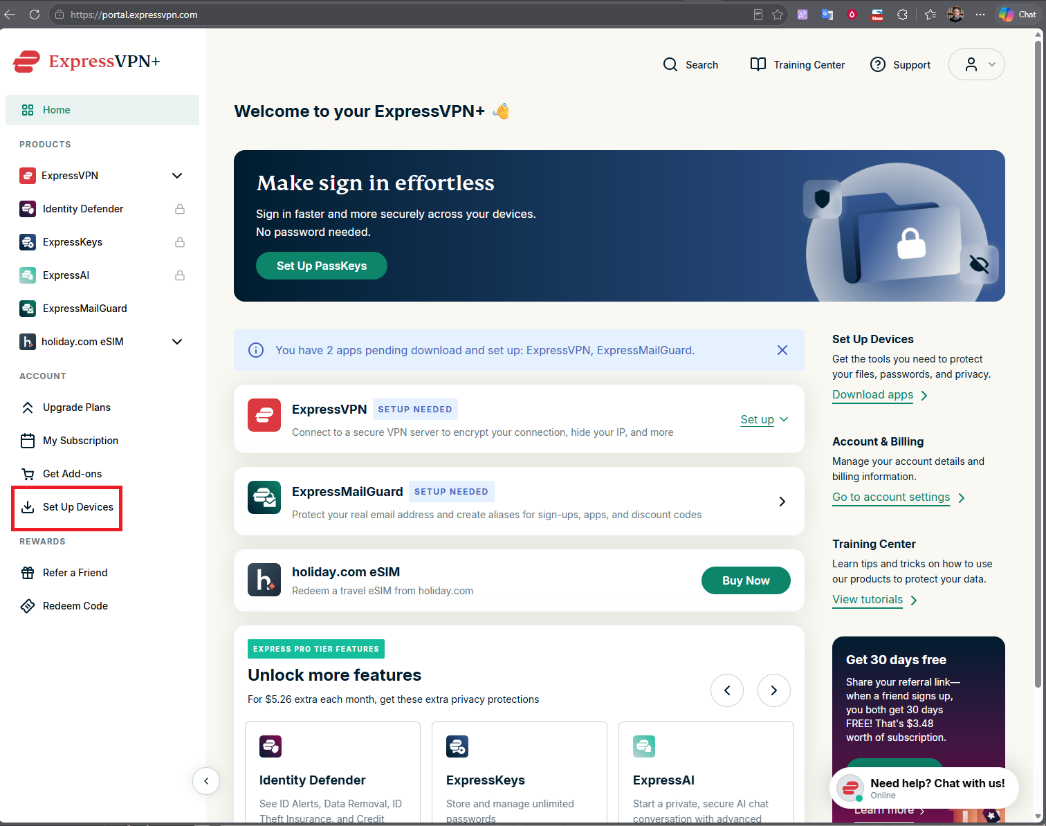
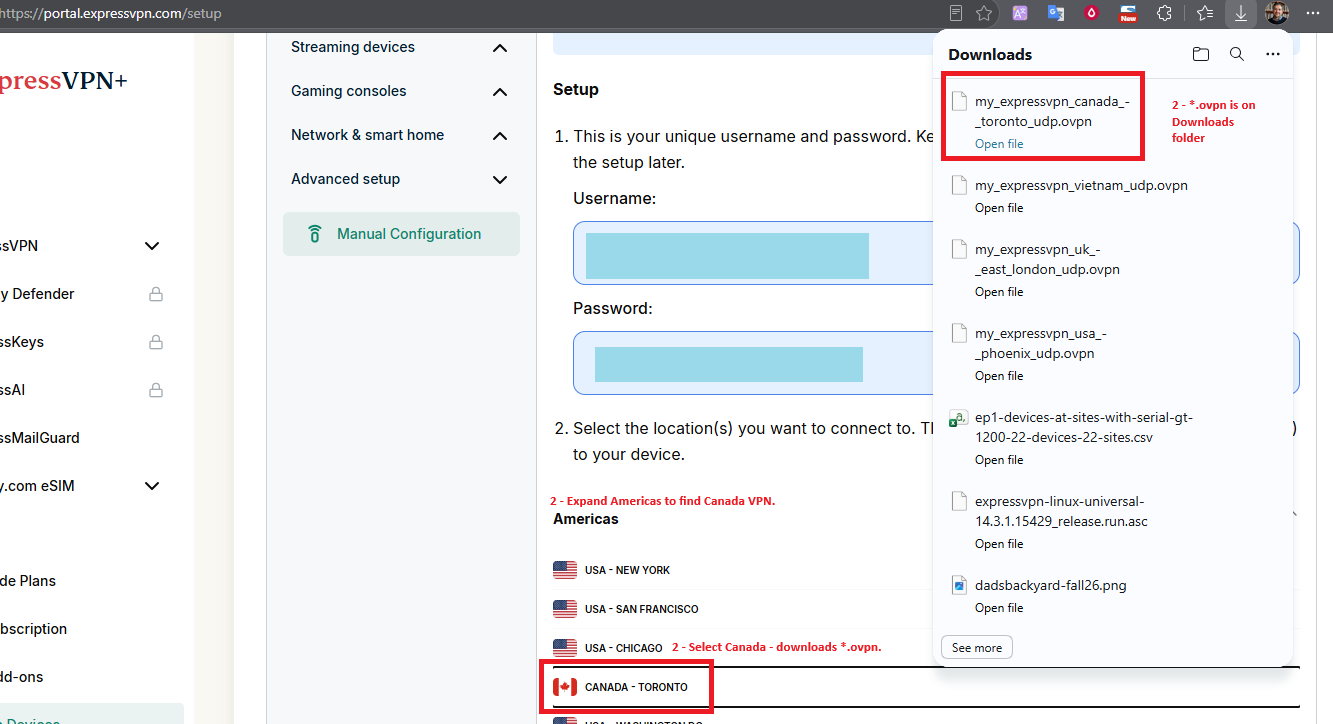
Sign in to http://expressvpn.com in your browser and click Set Up Devices in the left menu.
-
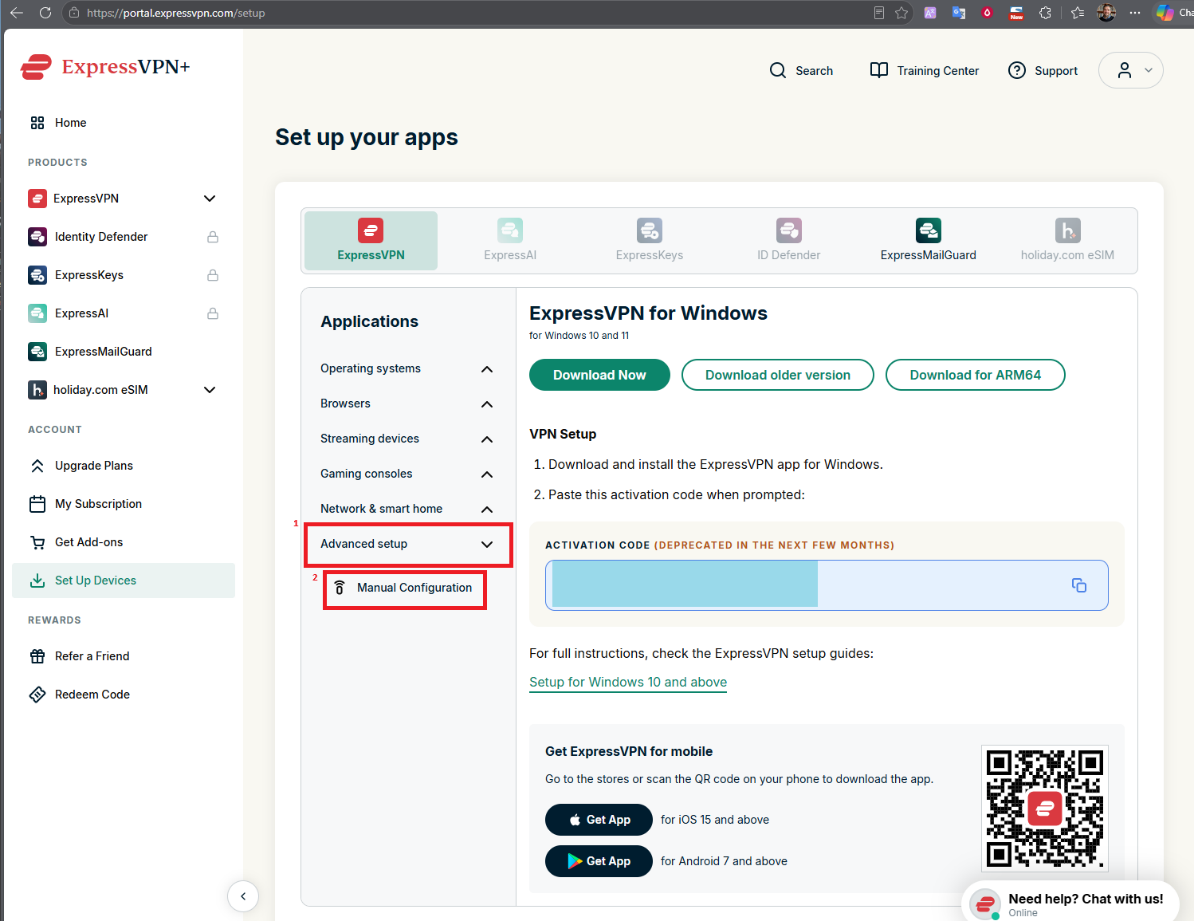
On the Set up your apps page, expand Advanced setup (left menu) and click Manual Configuration.
-
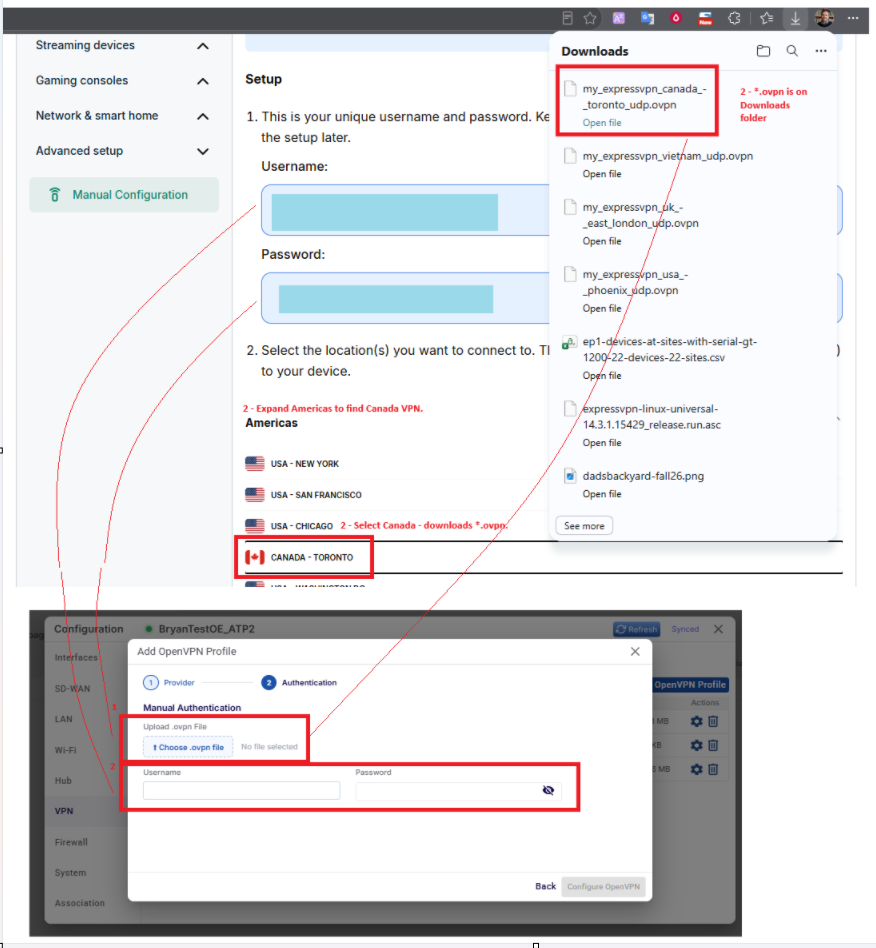
Copy the Username and Password shown under Setup (box 1). Keep them handy for Part 2.
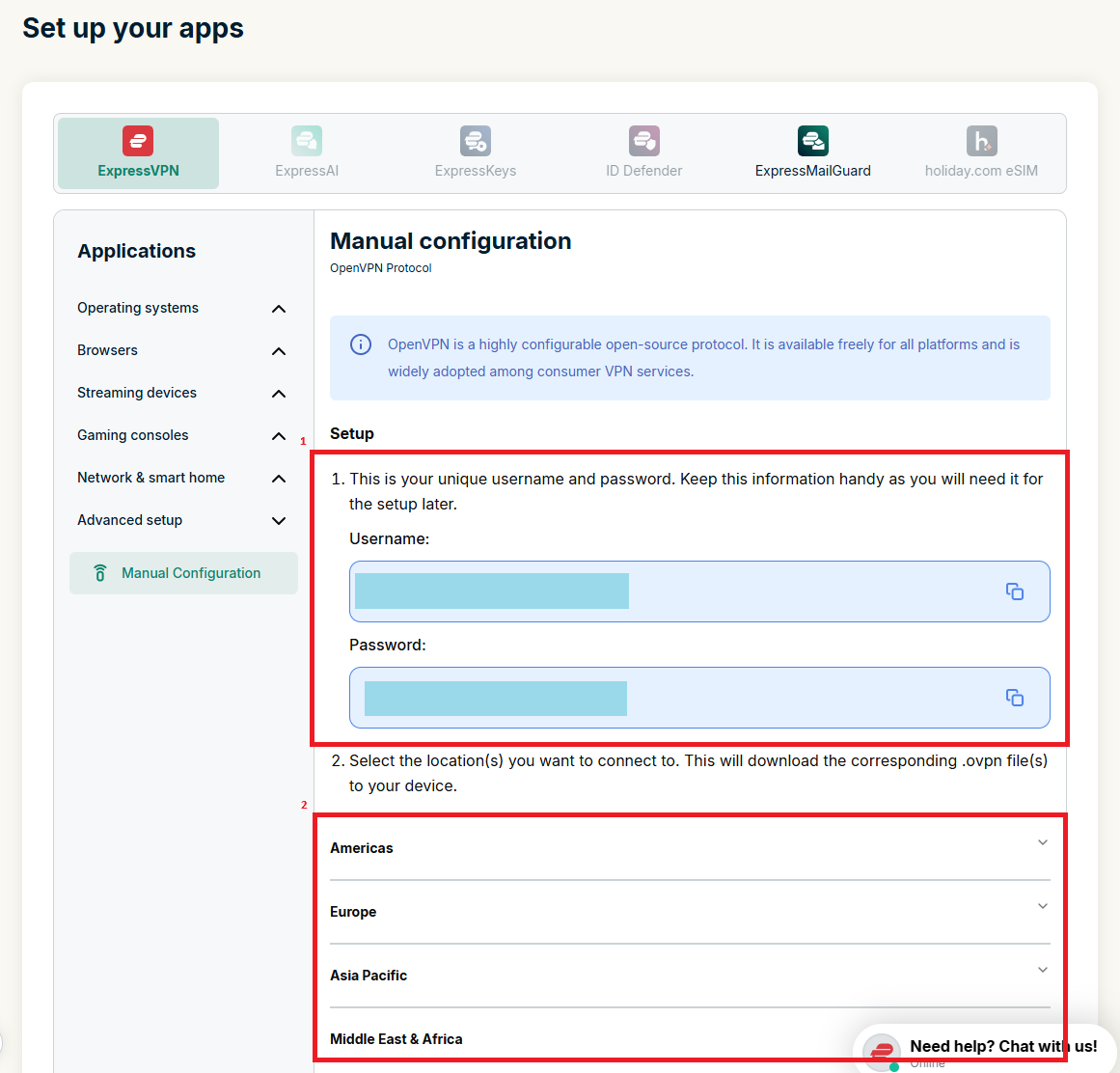
Note: These are OpenVPN credentials generated by ExpressVPN for manual setups. They are not the email and password you use to sign in to http://expressvpn.com.
-
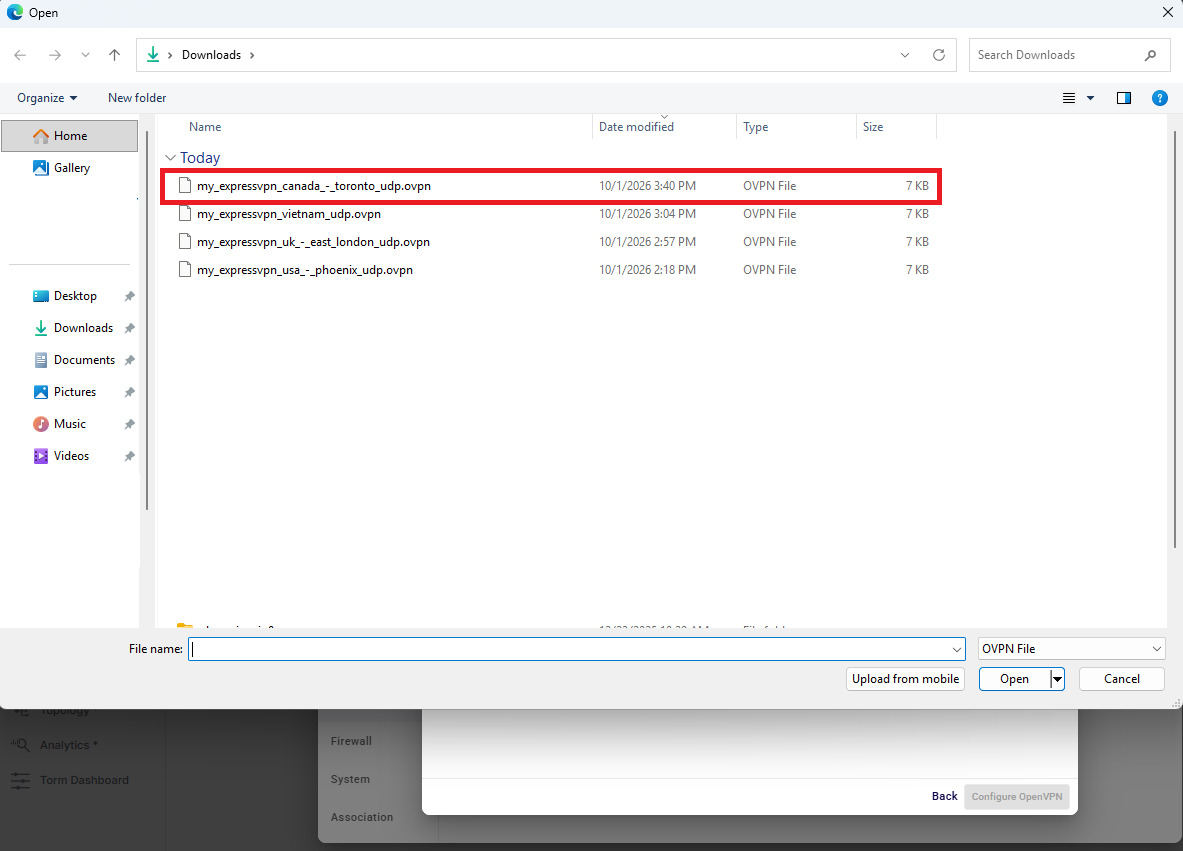
Under step 2 on the same page (box 2), choose the location where the VPN should terminate. For this example, expand Americas and select Canada – Toronto. The browser downloads the matching .ovpn file, e.g.
my_expressvpn_canada_-_toronto_udp.ovpn.
Part 2: Create the OpenVPN profile on Konnect Open
-
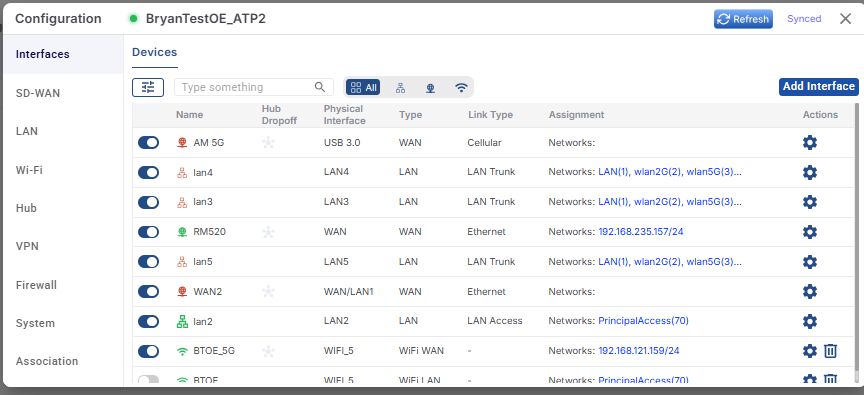
In http://cloud.kognitive.net, go to Sites → Topology → <your device> and click the gear icon for the Konnect Open device to open its Configuration.
-
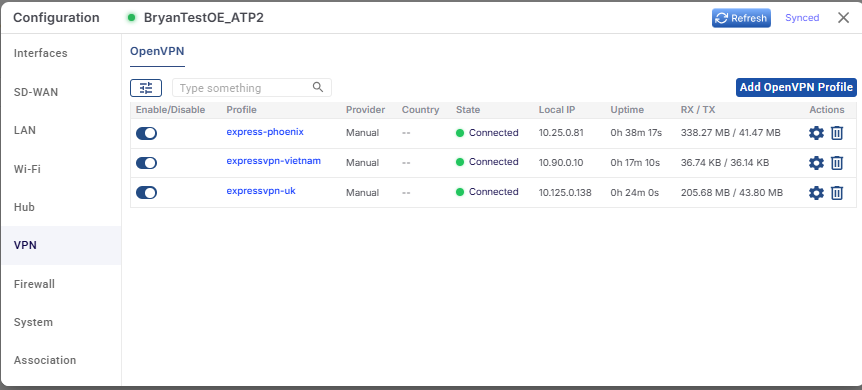
Select VPN in the left menu, then click Add OpenVPN Profile. On a new system the profile list is empty.
-
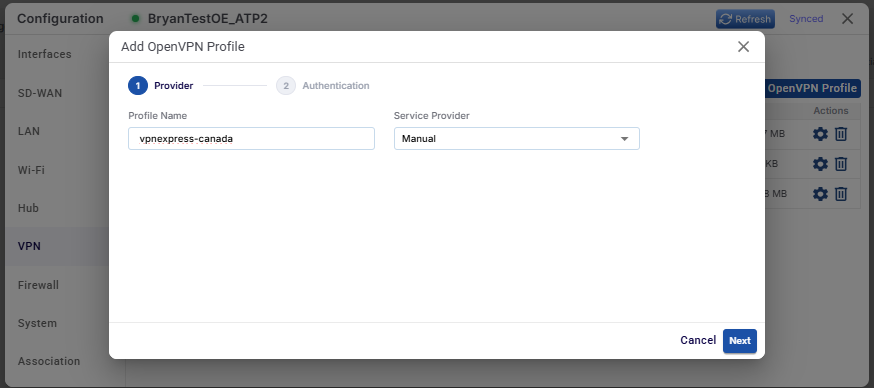
In the Provider step, enter a Profile Name (e.g.
vpnexpress-canada), leave Service Provider set to Manual, and click Next.
-
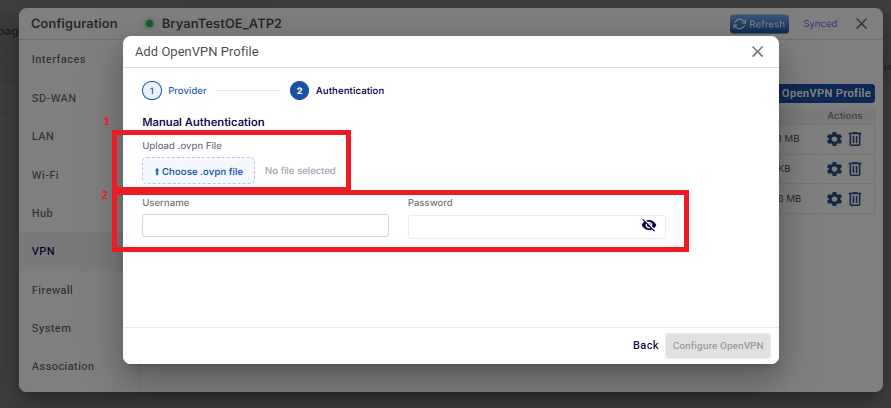
In the Authentication step, click Choose .ovpn file and select the file downloaded in Part 1.
-
Enter the Username and Password copied from the ExpressVPN Manual Configuration page.
-
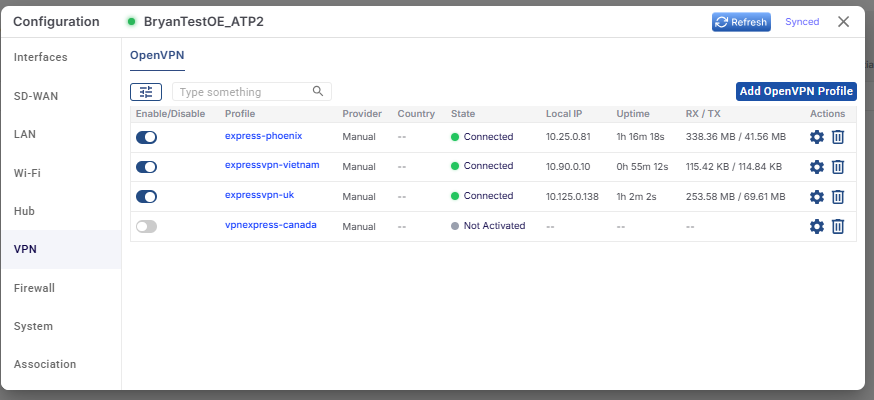
Click Configure OpenVPN. The profile is created but is Not Activated yet.
Part 3: Enable the VPN profile
-
Click the toggle on the left side of the profile row. After a few seconds the state changes to Connected.
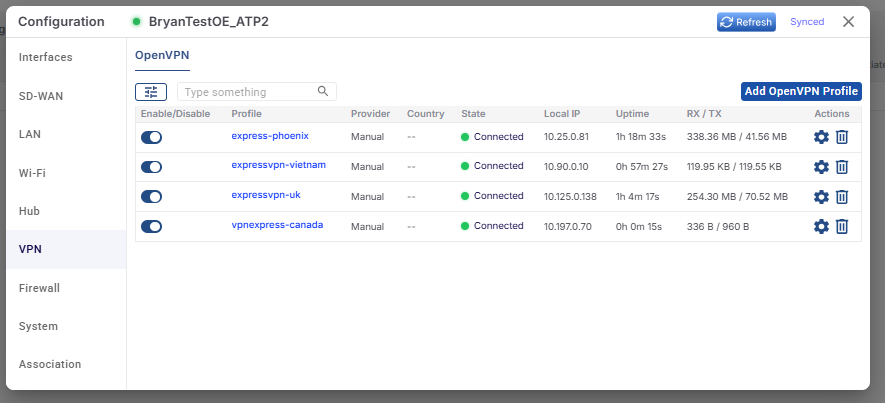
Troubleshooting: If the profile does not reach the Connected state, re-check the username/password and confirm the correct .ovpn file was uploaded.
Part 4: Route an access network over the VPN
-
Confirm the subnet of the access network under the LAN menu. In this example it is
192.168.70.0/24. -
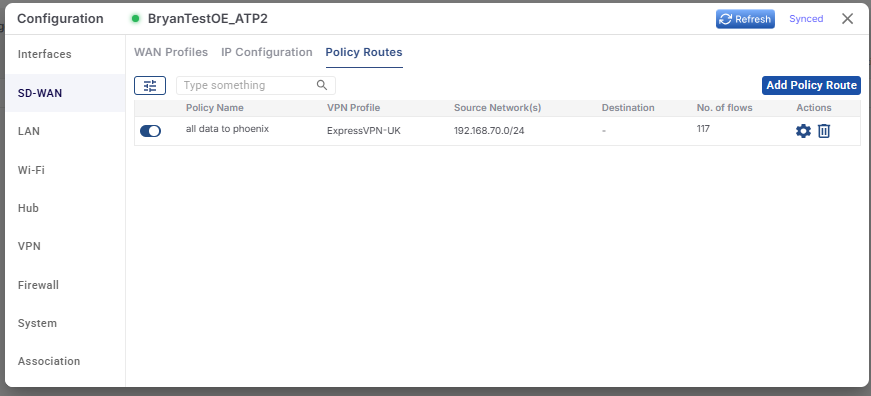
Go to SD-WAN → Policy Routes and click Add Policy Route. Set the Source Network(s) to the access network and select the VPN profile to use.
In the example below, a policy route already sends
192.168.70.0/24to the ExpressVPN UK (London) profile. The No. of flows column shows the active flows using the route (117 here).
Switching a policy route to a different VPN profile
-
Click the gear icon on the policy route, choose the new profile from the VPN Profile list (here
vpnexpress-canada), and click Update.
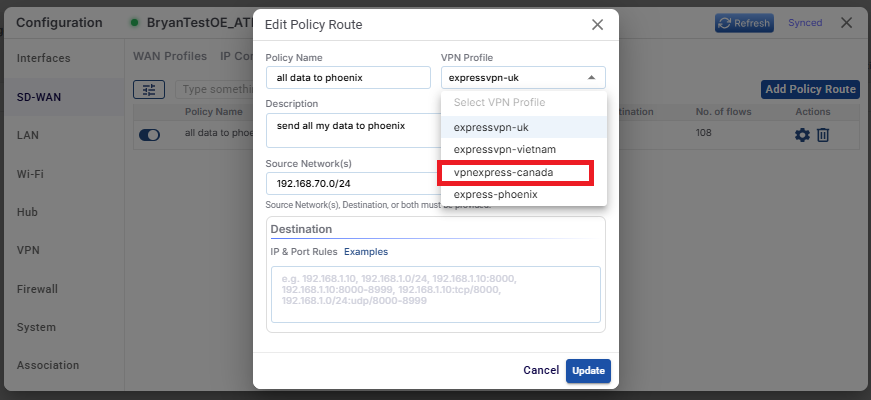
After the update, the policy route shows the new VPN profile.
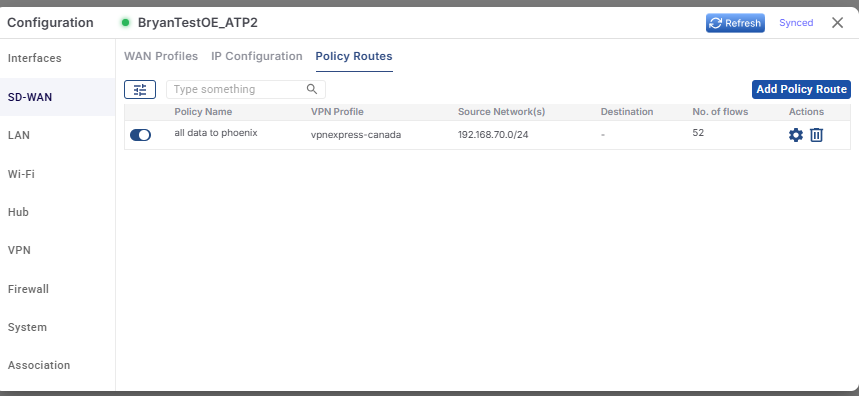
Note: A policy route sends its source network over exactly one VPN profile. Other policy routes can point to other VPN profiles at the same time.
Part 5: Verify
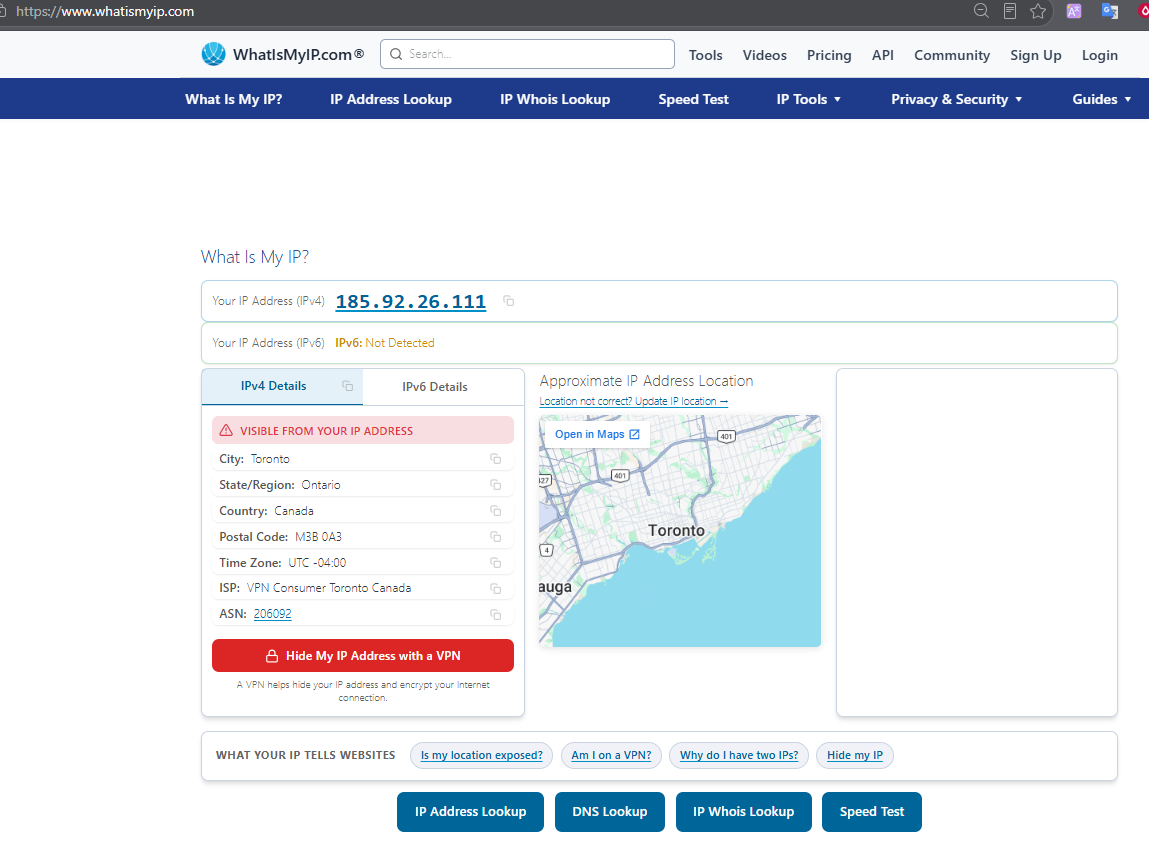
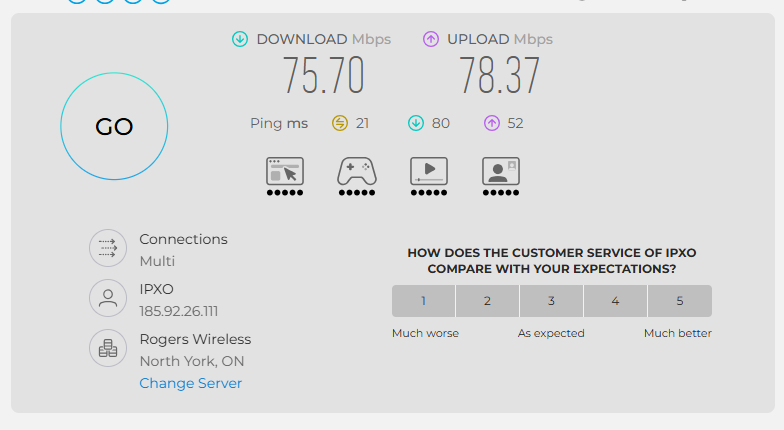
From a workstation connected to the 192.168.70.0/24 network, check your public IP and run a speed test. Both should show the VPN exit location (Toronto, Canada in this example).
Additional capabilities
-
Multiple VPN providers at once - Profiles from different providers (e.g. ExpressVPN, Proton VPN, NordVPN) can be active simultaneously.
-
Multiple profiles and policy routes - For example, send the whole access network (
192.168.70.0/24) to the Canada VPN while a more specific policy route sends a media server (192.168.70.100/32) to a USA VPN. -
Native (non-VPN) routing for a specific host is not supported yet; it is planned for a future release.