
Forgot Password
-
Click on Forgot Password? button from the User Authentication screen to reset the password.
-
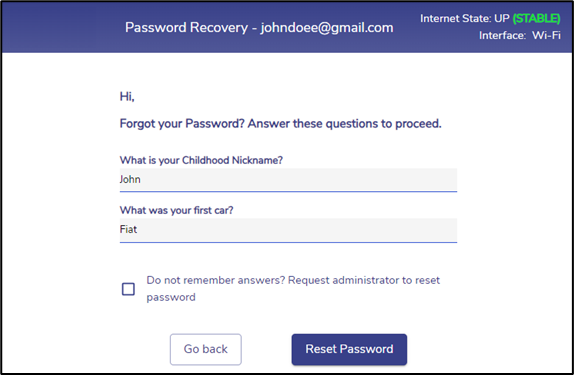
The Password Recovery dialog box opens.
-
Enter the correct answers for the security questions.
-
If the user does not remember the answers for the security questions, click the Do not remember answers? Request administrator to reset password checkbox to send a request to the administrator to reset the password. Please refer section Request Reset Password in the Password Reset page for further steps.
-
Click Go Back button to redirect back to the User Authentication screen.
-
Click Reset Password button after entering the answers to proceed to the next step.
-
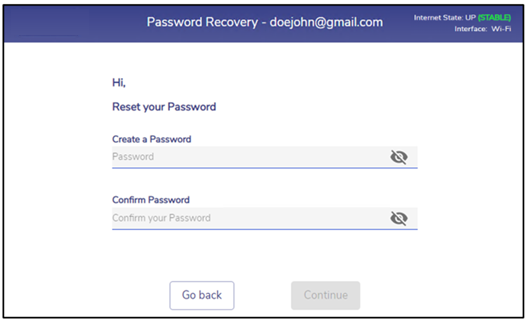
On successful identity verification, user can create a new password and confirm the same.
-
Enter a new password.
-
re-enter the password to confirm it.
-
Click Continue button to reset the password. On successful password reset, user is redirected to the authentication screen. User can now login with the newly created password.
-
Click Go Back button to redirect back to the security questions screen.
Request Reset Password
-
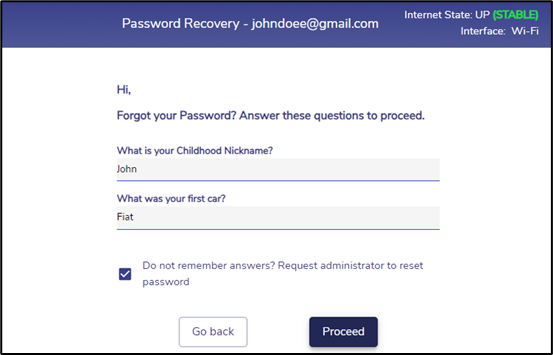
If the user does not remember the answers for the security questions, they can request the administrator to reset the password.
-
Click the Do not remember answers? Request administrator to reset password checkbox.
-
Click Go Back button to redirect back to the User Authentication screen.
-
Click Proceed button to send a request to the administrator to reset the password.
-
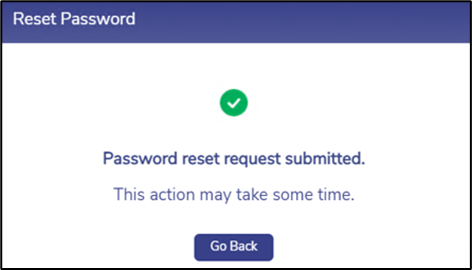
The below pop-up is displayed on sending successful reset request.
-
Click Go Back button to redirect back to the User Authentication screen.
-
When an user requests the admin to reset their password, the Reset Password icon is highlighted as shown below for the Admin in the Admin Portal.
-20240508-083311.png?cb=08507293549669b99252a7d01547da94)
-
The admin can click this button to reset the password of the corresponding user.
-
The user will receive the below email once admin resets the password.
-20240508-083741.png?cb=7bfd30154ccd2d7553d01abc91a19b14)
-
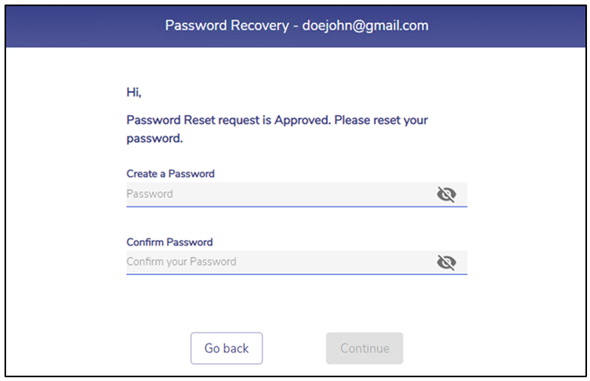
After receiving the email, the user must open their Captive portal, enter their email address and click the Forgot Password? button from the User Authentication screen to set a new password.
-
Enter a new password.
-
Confirm the password.
-
Click Continue button to reset the password. On successful password reset, user is redirected to the authentication screen. User can now login with the newly created password.