
-
Click the Agent Config tab. This tab can be used to configure the agent and associate them with the required hub.
-
The Agent Config tab opens as shown below.
-20250228-172406.png?cb=6f746d17684d1760f5eb4c9c8561e6ae)
Service / Hub Config
-
Click the Service / Hub Config button to configure the WAN Profile and set the WAN balancer for the Service or the Hub.
-20250228-172822.png?cb=b30a9afce2ca2c530d026a9ac38ea7bd)
Agent WAN
-
The Agent WAN tab from the side menu bar will be selected by default. This is a global configuration. The created WAN Profiles can be used across the selected organization.
-
Select the required Organization.
-20250228-173230.png?cb=0a3079431f2b7b5da82bf9ff47f60961)
-
Select any existing WAN Profile from the dropdown menu or create a new WAN Profile using the below options.
-
Enter a name for the WAN Profile in the Agent WAN Profile field.
-
Enter the WAN Name.
-
Select the WAN Type from the dropdown menu.
-
Select the Interface.
-
Enter the IP.
-
Enter the Gateway.
-
Enter the required VID.
Agent WAN Balancer
-
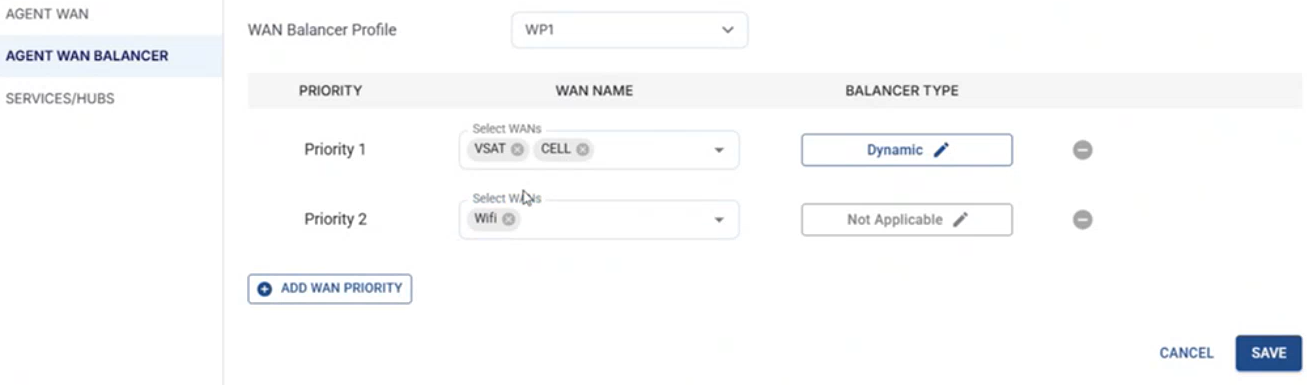
Select the Agent WAN Balancer option from the side menu bar.
-
Select the required WAN Profile in the WAN Balancer Profile field.
-
Select the Priority order of the WANs.
-
Click the Save button to save the changes.
Services/Hubs
-
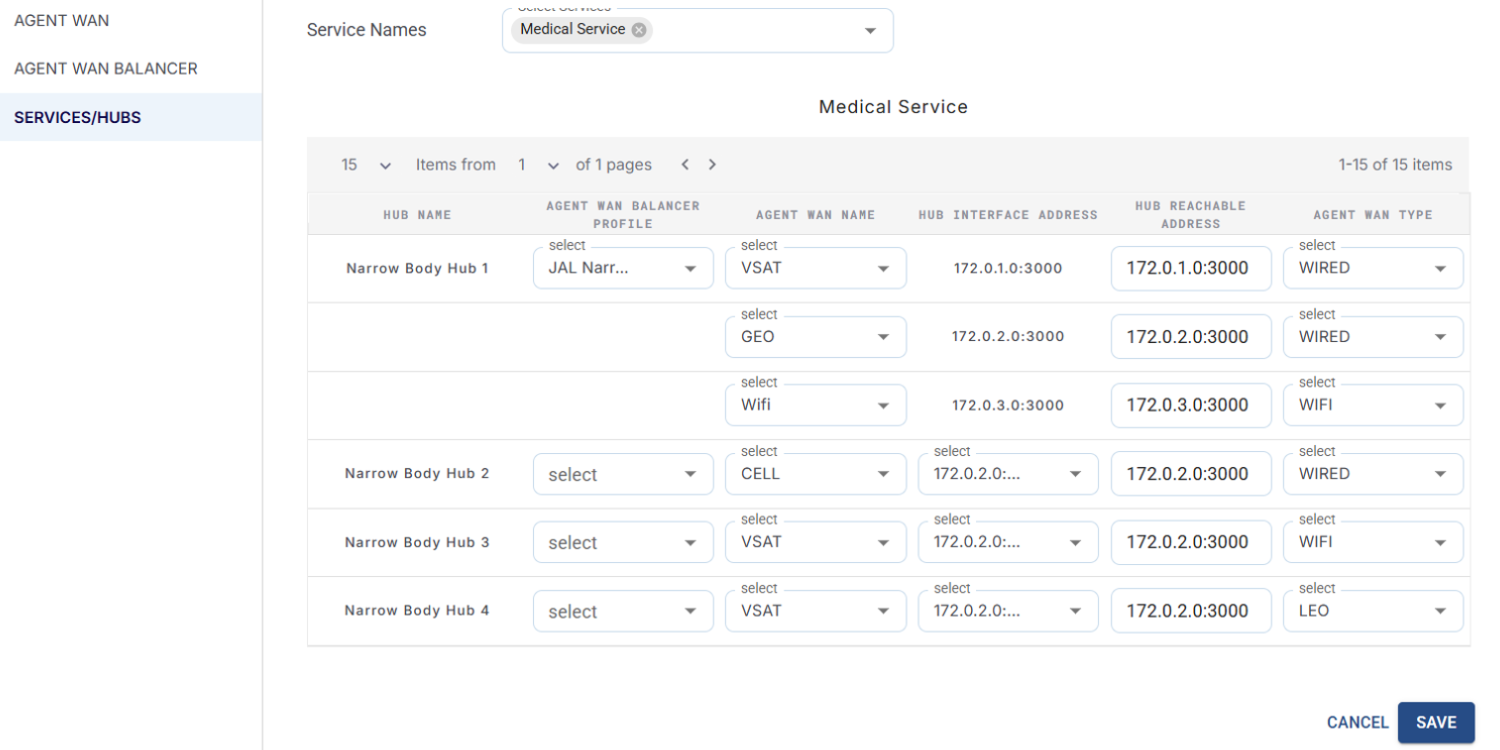
Select the Service/Hubs option from the side menu bar to view all the services and hubs associated with the selected organization.
-
The data in this screen will be updated every five minutes by the system.
-
Enter the required Hub Reachable Address and Port combination for the Agent Wan Balancer Profiles.
Create Agent
-
Select the Create Agent button to create the agent.
Access Network
-
The Access Network option will be selected by default.
-20250228-180431.png?cb=31f2e9db49b882ed72e99975067f6cc4)
-
Select the required Organization.
-
Enter the Agent ID.
-
Enter the Agent Name.
-
Enter the VLAN Name.
-
Select the Interface.
-
Enter the VID.
-
Enter the IP.
-
Select the Add VLAN button to add a new VLAN.
-
Select the Save button to save the changes.
Agent Config Summary
-
Select the Agent Config Summary option from the side menu bar to view the list of Hubs and VLANS associated with the selected Organization.
-20250228-181158.png?cb=bec88764ef023e08256276328f09b680)