The Sat-Elite Epic platform is modular and extendable, with support for external USB modems that can be used to add cellular connectivity as an additional WAN source. This flexibility allows sites to be provisioned with or without cellular connectivity to control for specific needs or costs at the time of install, but lets network operators upgrade or downgrade resources at individual sites at their discretion. This user guide details how to add a Pepwave modem to an EpicOS device.
Software Setup
EpicOS Version 6.5.3.95_67 or higher is required to use USB modems with EpicOS
Once connected and with a powered up EdgeServer running EpicOS 6.5.3 or above, the External USB Modem will be automatically added to the system. However, for previous releases there are few steps – shown here:
-
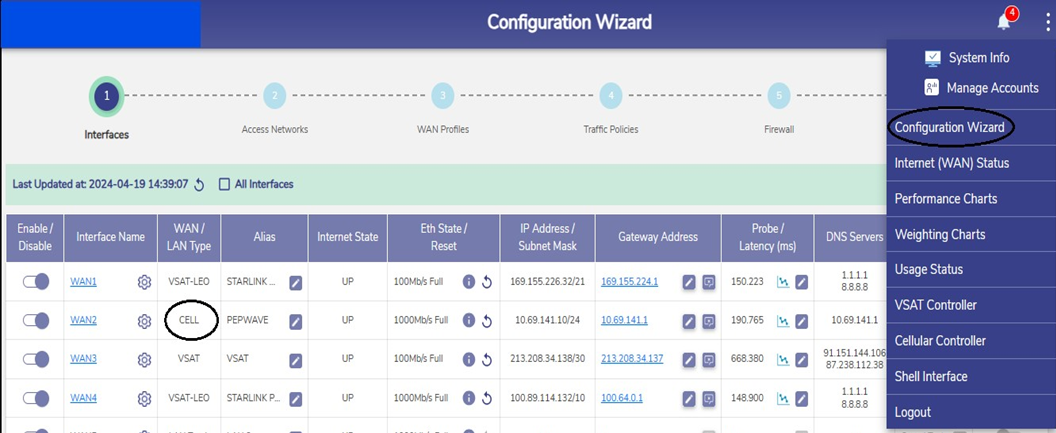
Login to the EdgeServer -> Menu -> Configuration Wizard -> Interfaces
-
Click on the Toggle icon of the 'Pepwave' interface and disable the Interface.
-
Click the Gear icon next to the Interface. A popup appears.
-
Select the Interface Type as WAN from the drop down.
-
Select the WAN type as CELL from the dropdown menu.
-
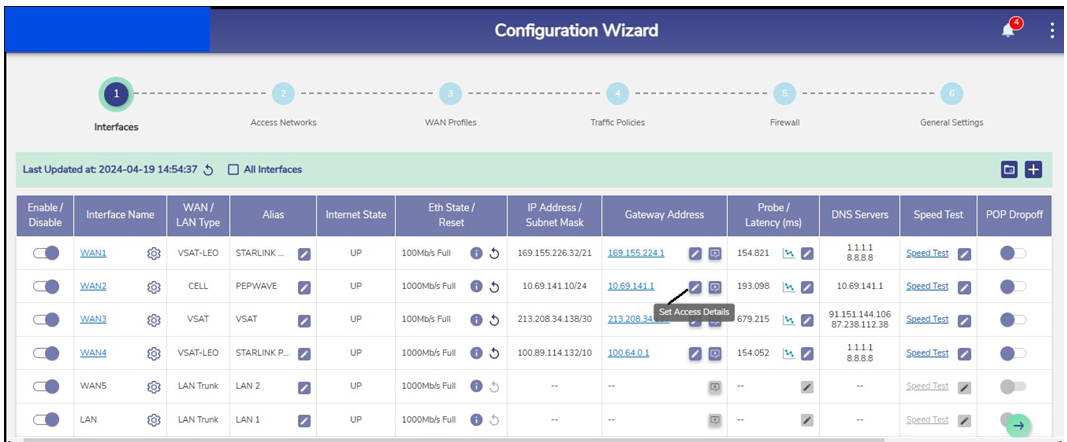
Click the Set Access Details icon from the Gateway Address column.
-
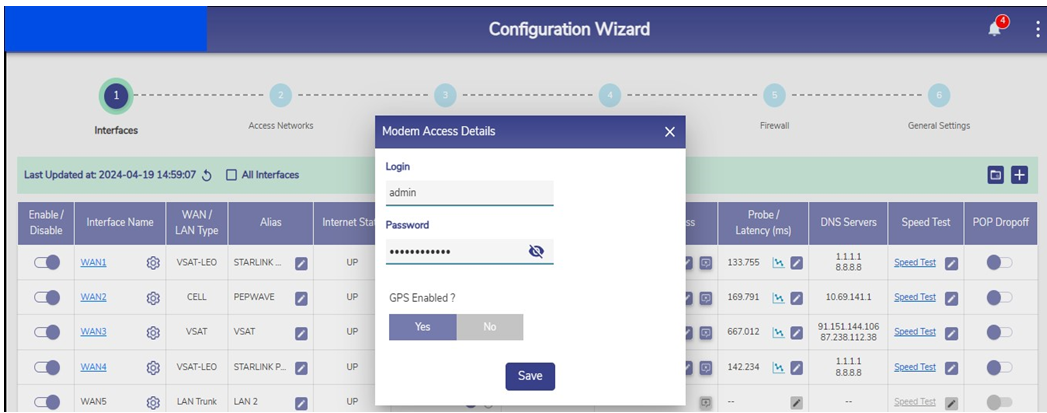
Enter the Username and Password for Pepwave login in the popup box and save the configuration.
-
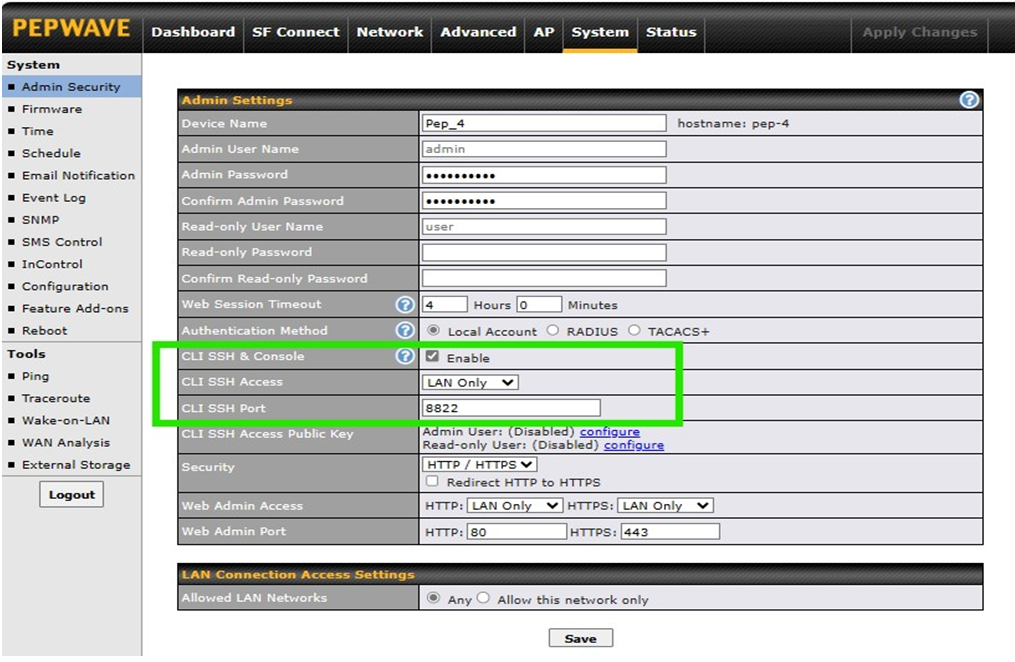
On the Pepwave Modem Configuration, go to System > Admin Security and set the following configuration:
-
CLI SSH & Console - Enable
-
CLI SSH Access - LAN Only
-
CLI SSH Port - 8822
-
-
Pepwave modem can be accessed locally through the Gateway IP. To access the Pepwave modem remotely using the Konnect Application refer the 'How To: Remotely access Starlink / Peplink / Ascent Modem through Konnect Application' document.
Cellular Controller Management
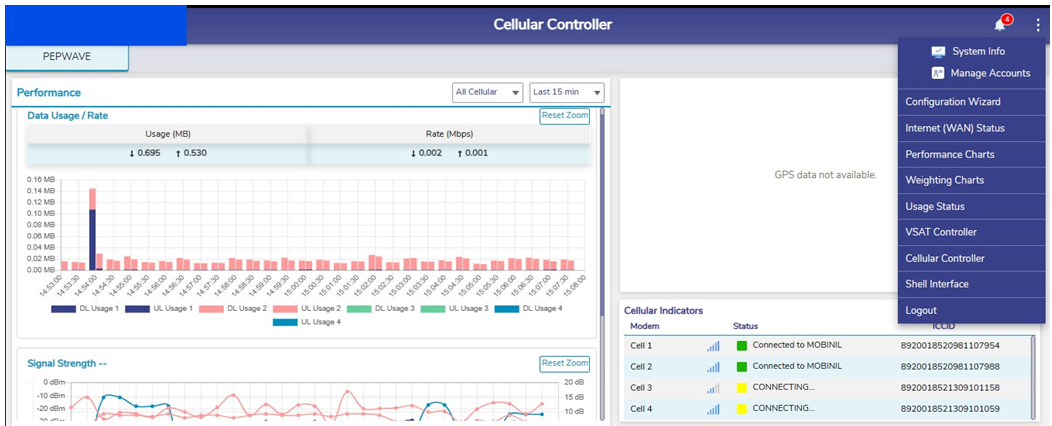
Once the Pepwave modem is configured on the EpicOS System, user can view analytics from the modem.
To view the analytics, perform the following steps:
-
Login to the EdgeServer -> Menu -> Cellular Controller