
Keywords: EpicOS, Change Password, Reset Password, Change Default Password
Overview
This guide explains how to change or reset the password for an EpicOS Portal user account. It covers two methods: using the Manage Accounts → Change Password option after logging in with your current credentials, and using the Forgot Password? workflow from the login screen to receive a reset link via email and set a new password. By following this guide, you will be able to securely update your portal password or recover access if you have forgotten it.
Method 1: Menu → Change Password
-
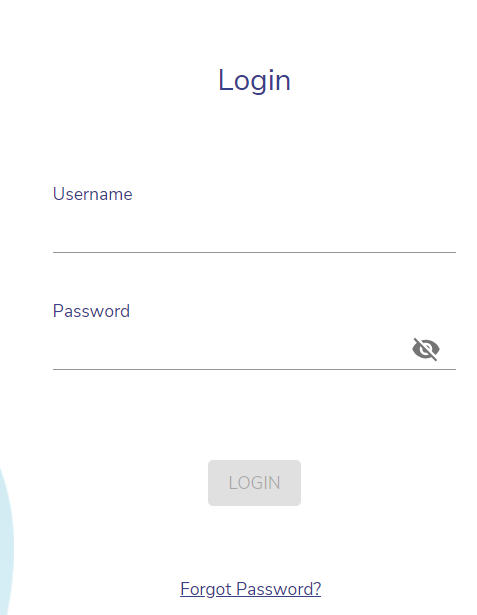
Login to the Edge Portal using valid credentials.
-
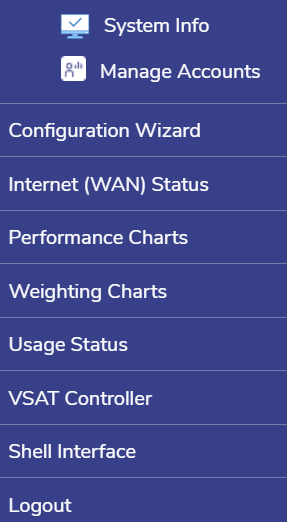
Click the three dots icon

-
Click Manage Accounts from the dropdown options.
-
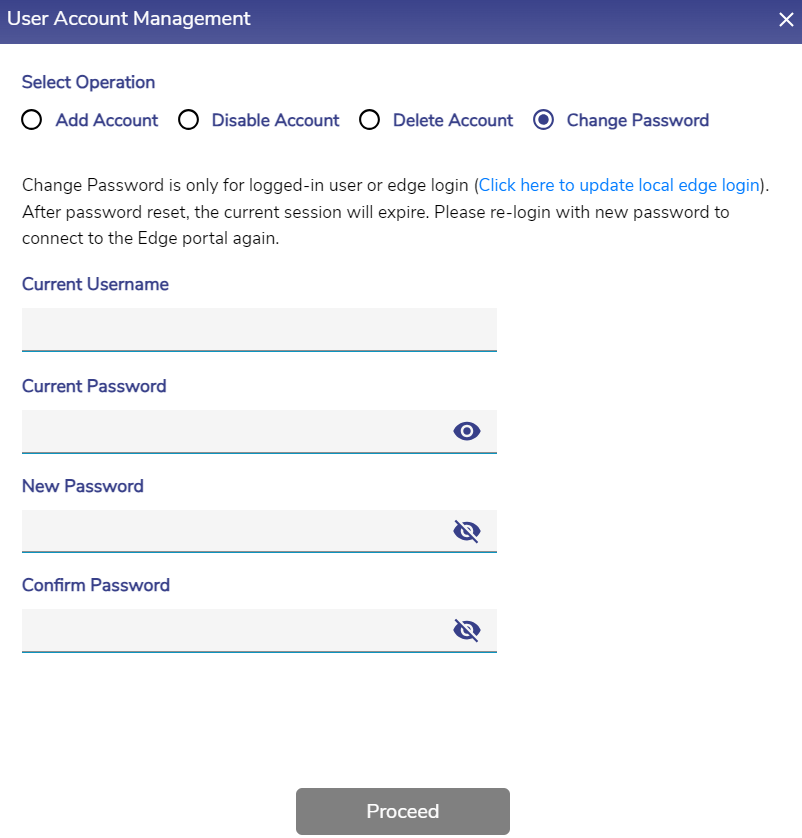
Select the Change Password radio button.
-
Enter the Username.
-
Enter the Current Password.
-
Enter the New Password.
-
Re-enter the New Password to confirm it.
-
Click Proceed button to save the changes.
-
The password is now successfully changed.
Method 2: Forgot Password
-
Click the Forgot Password? button from the login screen.
-
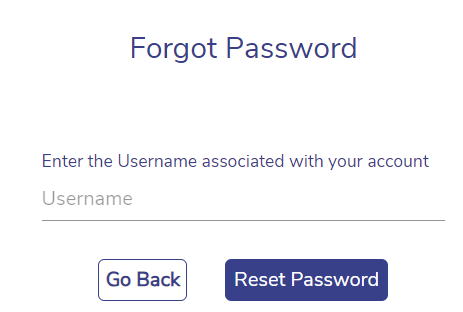
The Forgot Password screen opens as shown below:
-
Enter the Username of the account and click Reset Password.
-
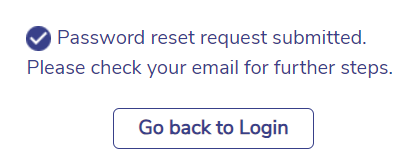
The user receives the following message on the screen.
-
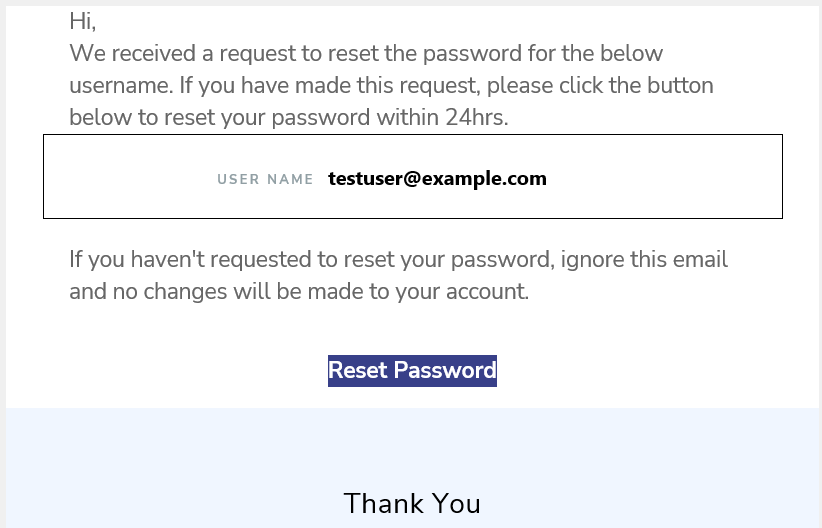
The link to reset the password will be sent to the user’s official Email address.
-
Click the Reset Password link given in the Email.
-
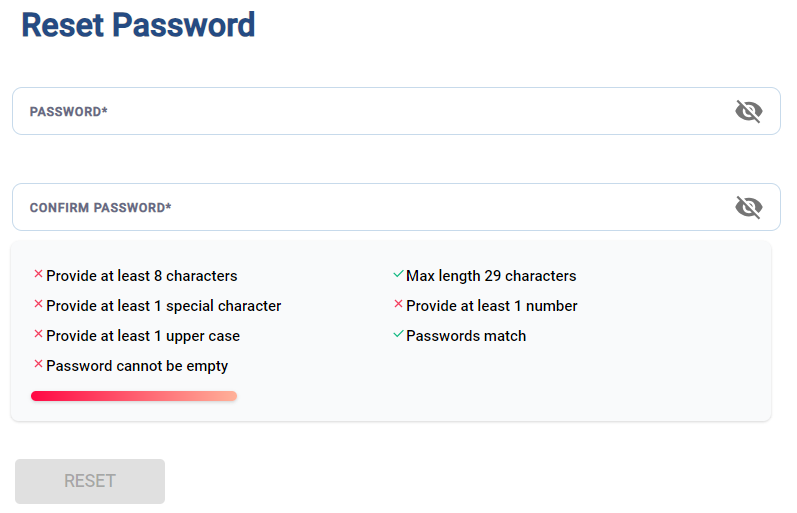
The Reset Password screen opens as shown below:
-
Enter the New Password as per the on screen guidelines.
-
Re-enter the New Password to confirm it.
-
Select the Reset button to change the password.
-
The password is now successfully changed.