
RM520 - Quick Start Guide
Overview
The RM520 is designed for enterprises that require continuous, wireless-first connectivity across mobile, remote, and distributed locations. It delivers seamless multi-WAN performance by combining onboard 5G, Starlink integration, Wi-Fi 6, and wired backhaul to maintain dependable uptime.
Leading cybersecurity, cloud-managed control, and centralized policy management enable the RM520 to deliver scalable, secure connectivity for multi-organization environments.
The primary components of the RM520 system are:
RM520 appliance
12V/4A DC Power Adapter
Ethernet Cable
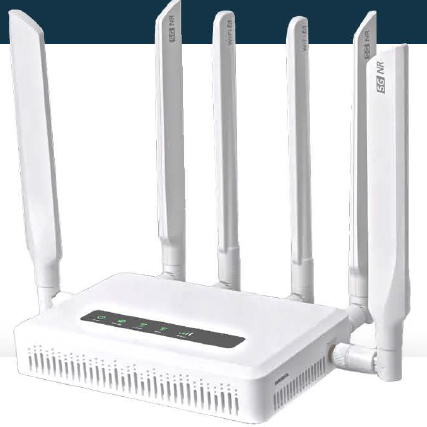
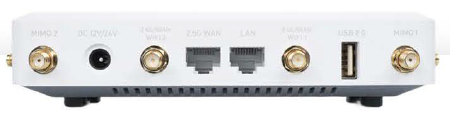
Panel Interfaces
The RM520 provides multiple connectivity ports and interfaces used for network access and device management.
Ethernet Ports
2 × RJ45 Ethernet ports
1 × 1.0 GbE LAN
1 × 2.5 GbE configurable LAN/WAN
These ports enable wired network connectivity and can be used for local networking or WAN uplink connections.
USB Port
1 × USB 2.0 port
The USB port allows additional device connectivity or peripheral support.
Storage Slot
1 × microSDXC slot
The microSD slot can be used for local storage or system functions depending on the deployment configuration.
Steps to bring the system online
1. Registration
Every RM520, regardless of license type, will need to be registered - which includes assigning the device to an Organization, a Site, creating a unique Device Name, and selecting a License.
All newly procured devices should be listed in the Inventory > Warehouse tab.
Open the Warehouse tab for the appropriate Organization and find the device to be registered by matching the Device ID (DID) printed on the device with the row in the table.
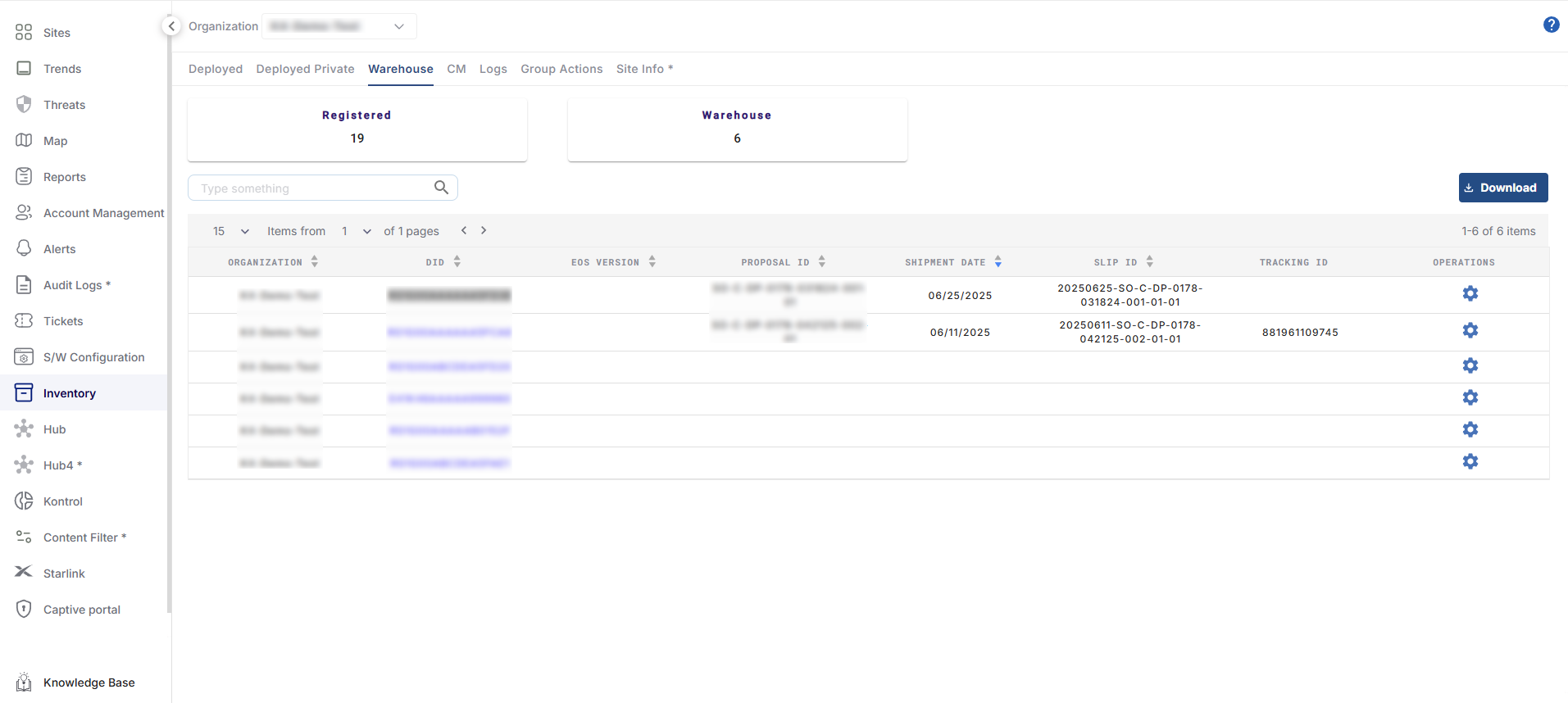
Warehouse tab of Inventory showing devices available for registration
Select the Operations settings icon to Register the device, and fill in the registration values, then hit ‘Register’ and ‘Proceed’ to complete the registration process.
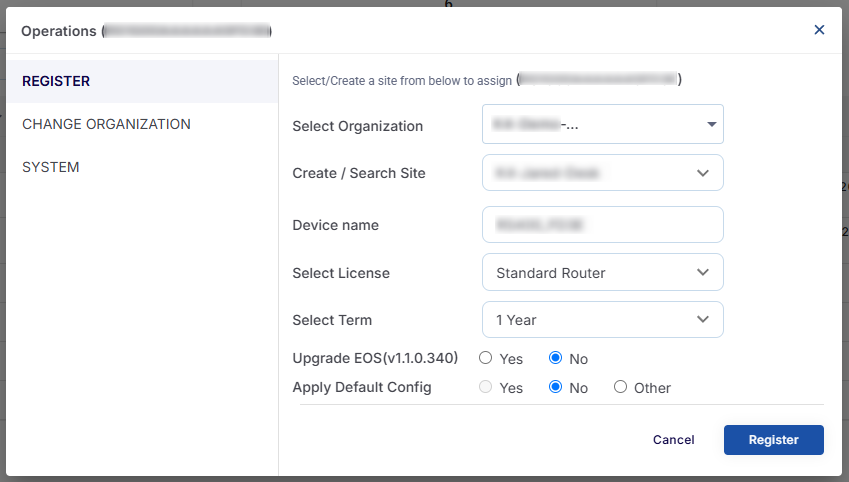
Operations Dialog Box
The newly registered device will now appear in the Inventory > Deployed tab, as well as in the Sites Topology area.
-20260319-083600.png?inst-v=7855aa75-7dcf-4fee-9455-32bc9721ea56)
Sites Topology shows the newly registered device
After successful registration, the device can be powered on and connected to the internet.
2. Device Power & Connectivity
Connect the included 12 VDC power adapter to the RM52a device and plug it into a power outlet. Use a UPS for site deployments with unstable power.
Wait for the router to boot up; the LED indicator will flash blue with a sequence of patterns, turn solid white when ready.
Connect an ethernet cable from a WAN source into the ‘WAN’ port of the RM520. The WAN source should have DHCP enabled so that it can assign the RM520 an IP address.

If a WAN source with internet access is not available, the RM520 can still be configured using the “On-Premises” instructions below
3. Configure RM520
After the device is powered on and connected to internet, it can be access either from the cloud or physically, on-premises at the site.
Method 1 - Access from the Cloud / Remote Connection
RM520 can be controlled and configured from the cloud. Even if the device is offline, configuration changes can be made and will be pushed to the device when it next comes online.
Head to the Sites section, then click on the name of the site where the RM520 is registered to open up the site detailed topology view.

Sites view, with table of Sites for the selected Organization
After the Site is selected, the Topology view is shown where the Device Details table lists all of the devices registered to the Site. Here, the online status of each device is shown.
-20260319-083852.png?inst-v=7855aa75-7dcf-4fee-9455-32bc9721ea56)
Device Details Table in the Sites Topology area
Once online - the Portal link icon will illuminate blue, and the Status should read ‘Online’.

Device with ‘Online’ Status
Click on the Settings Icon of the desired device to bring up the Configuration dialog window. The Configuration dialog allows admins to control many of the common device settings from the cloud.
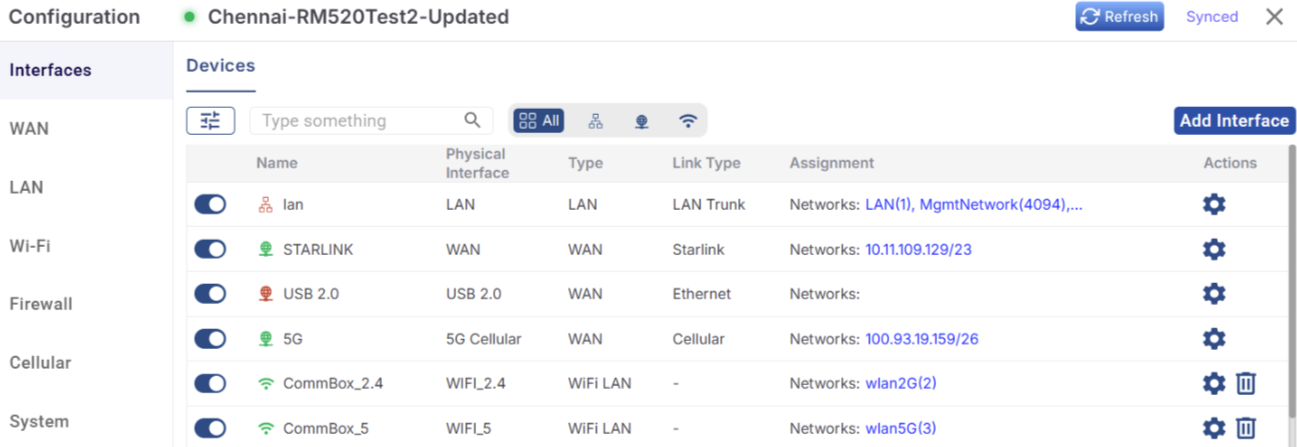
RM520 Configuration Dialog Box
To update the device to the newest Software, head to the System tab and check the Current Software Version. Hit ‘Update Software’ and ‘Proceed’ to confirm and update. The update will take a few minutes, and the device will reboot after the update.
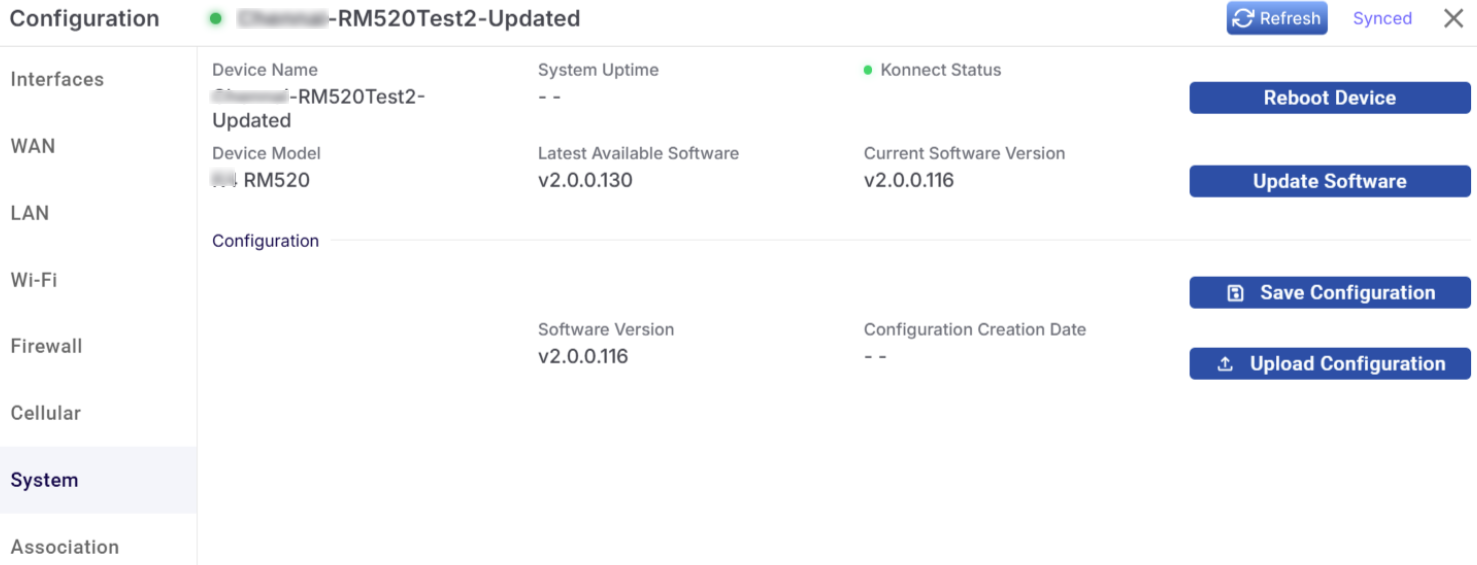
RM520 Configuration - System Software Update
Method 2 - Access from the Edge / On-Premises
Physical Connectivity
Wired Connection
Connect your computer’s ethernet port to one of the LAN ports on the RM520 using the provided Ethernet cable.
Ensure your computer is set to obtain an IP address automatically (DHCP).
Wireless Connection
On your device, search for an available SSID and connect to the Wi-Fi network
For the 2.4 GHz network, the SSID is "RM520-XXXX"
For the 5 GHz network, the SSID is “RM520-5G-XXXX"
"XXXX" represents the last four characters of the router's MAC address.
The default Wi-Fi password is printed on the Device Label of the router.
Web Admin Panel
Open a web browser (Chrome, Edge, Safari, etc.) and enter the gateway IP address, which differs based on the access mode
Access Mode | Default Gateway IP |
|---|---|
Wired LAN ethernet | 192.168.235.1 |
You will be directed to the initial setup page of the web Admin Panel.
4. Basic Configuration
Generally, the device configuration should be done through EpicLink. Please see the relevant section in Sites > Topology > Operations > Cellular.
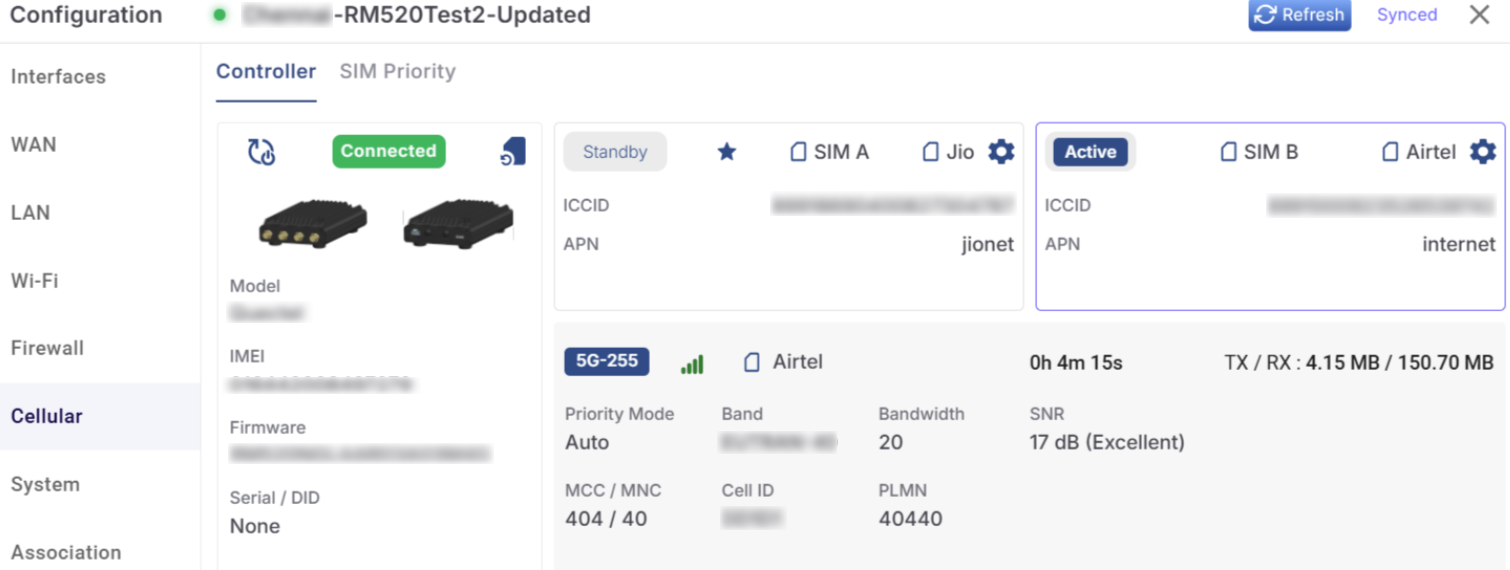
Cellular